> ## Documentation Index
> Fetch the complete documentation index at: https://agent.minimax.io/docs/llms.txt
> Use this file to discover all available pages before exploring further.
# Common Issues
> Solutions for common MiniMax Code client startup, login, unresponsive app, and log upload issues.
This page applies to common startup and unresponsive-app issues in current MiniMax Code versions. Windows clients after `3.0.48` no longer depend on OpenCode, so troubleshooting steps for older OpenCode / daemon behavior are not used as the basis for current versions.
## Startup Failure - Type 1
If you see `utility exited before ready (code=9)` during startup, this currently affects some macOS x64 (Intel) users.
 Workaround: download and reinstall the macOS Intel x64 v3.0.66 build.
| Platform | Mainland China | Global |
| --------------- | ------------------------------------------------------------------------------------------------------------ | ----------------------------------------------------------------------------------------------------------- |
| macOS Intel x64 | [Download v3.0.66](https://filecdn.minimax.chat/public/minimax-agent-prod/release/MiniMax%20Code-3.0.66.dmg) | [Download v3.0.66](https://file.cdn.minimax.io/public/minimax-agent-prod/release/MiniMax%20Code-3.0.66.dmg) |
## Windows Browser Launch Failure
If Desktop login shows `Failed to open: 找不到应用程序。 (0x800401F5)` or returns `no_default_browser`, Windows usually does not have a usable default browser or the browser association is broken.
Workaround:
1. Install a browser such as Edge or Chrome.
2. Set it as the Windows default browser.
3. Restart MiniMax Code and try again.
If it still fails, reassign the Windows web browser association in Default apps and retry.
You can also open the login page directly in your browser: [https://agent.minimax.io/login?sso=1](https://agent.minimax.io/login?sso=1)
## General Issues
### MiniMax Code fails to start
If MiniMax Code shows a startup error, first check whether the issue is caused by an older installer.
Workaround: download and reinstall the macOS Intel x64 v3.0.66 build.
| Platform | Mainland China | Global |
| --------------- | ------------------------------------------------------------------------------------------------------------ | ----------------------------------------------------------------------------------------------------------- |
| macOS Intel x64 | [Download v3.0.66](https://filecdn.minimax.chat/public/minimax-agent-prod/release/MiniMax%20Code-3.0.66.dmg) | [Download v3.0.66](https://file.cdn.minimax.io/public/minimax-agent-prod/release/MiniMax%20Code-3.0.66.dmg) |
## Windows Browser Launch Failure
If Desktop login shows `Failed to open: 找不到应用程序。 (0x800401F5)` or returns `no_default_browser`, Windows usually does not have a usable default browser or the browser association is broken.
Workaround:
1. Install a browser such as Edge or Chrome.
2. Set it as the Windows default browser.
3. Restart MiniMax Code and try again.
If it still fails, reassign the Windows web browser association in Default apps and retry.
You can also open the login page directly in your browser: [https://agent.minimax.io/login?sso=1](https://agent.minimax.io/login?sso=1)
## General Issues
### MiniMax Code fails to start
If MiniMax Code shows a startup error, first check whether the issue is caused by an older installer.
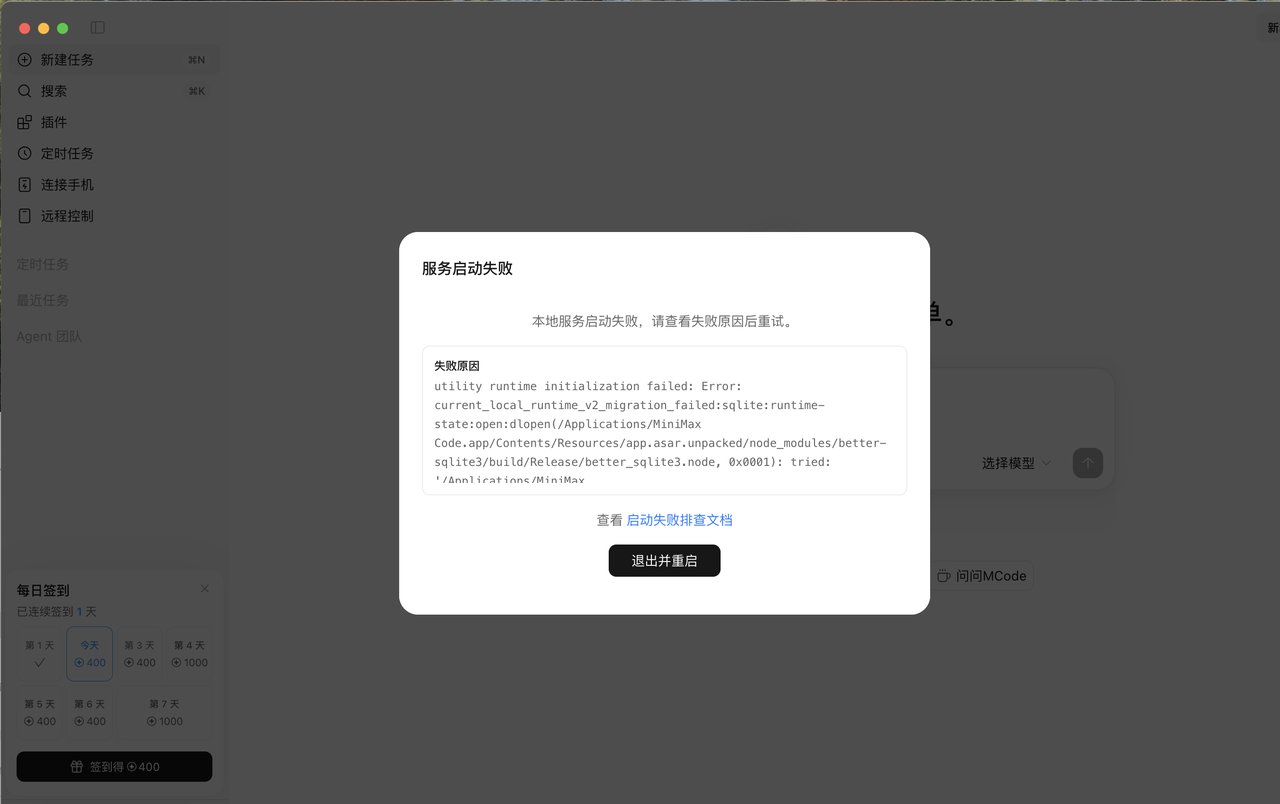 Startup issues caused by official packaging builds have been fixed in newer versions. Download the latest official installer and reinstall MiniMax Code.
| Platform | Mainland China | Global |
| ------------------- | ---------------------------------------------------------------------------------------------------------------------- | --------------------------------------------------------------------------------------------------------------------- |
| macOS Apple silicon | [Download v3.0.66](https://filecdn.minimax.chat/public/minimax-agent-prod/release/MiniMax%20Code-3.0.66-arm64.dmg) | [Download v3.0.66](https://file.cdn.minimax.io/public/minimax-agent-prod/release/MiniMax%20Code-3.0.66-arm64.dmg) |
| macOS Intel | [Download v3.0.66](https://filecdn.minimax.chat/public/minimax-agent-prod/release/MiniMax%20Code-3.0.66.dmg) | [Download v3.0.66](https://file.cdn.minimax.io/public/minimax-agent-prod/release/MiniMax%20Code-3.0.66.dmg) |
| Windows 64-bit | [Download v3.0.66](https://filecdn.minimax.chat/public/minimax-agent-prod/release/MiniMax%20Code%20Setup%203.0.66.exe) | [Download v3.0.66](https://file.cdn.minimax.io/public/minimax-agent-prod/release/MiniMax%20Code%20Setup%203.0.66.exe) |
### MiniMax Code is not responding
If the app freezes, a request stays pending for a long time, or the page stops producing output, check the following in order:
1. Confirm that your network connection is working.
2. If you installed the [Mainland China version](https://agent.minimaxi.com/download) and the issue looks like a timeout, check whether your computer is connected to a proxy.
3. Check the service status indicator at the bottom of the app.
4. Fully quit and restart the app.
5. If the issue continues, upload logs from Settings and contact support.
### MiniMax Code service fails to start
If you see a “service startup failed” dialog, first check for leftover processes, then check whether `.mavis` and `.minimax` exist and look valid in the current user's home directory.
#### End leftover processes first
Windows:
1. Open Task Manager.
2. Search for `minimax`.
3. End the related processes.
4. Wait about 10 seconds.
5. Restart the app.
macOS:
1. Open Activity Monitor.
2. Search for `minimax`.
3. Force quit the related processes.
4. Wait about 10 seconds.
5. Restart the app.
#### Check user data directories
If the service still fails to start after restarting, check `.mavis` and `.minimax` under the current user's home directory.
Windows PowerShell:
```powershell theme={null}
Test-Path "$env:USERPROFILE\.mavis"
Test-Path "$env:USERPROFILE\.minimax"
Get-ChildItem -Force "$env:USERPROFILE\.mavis" -ErrorAction SilentlyContinue | Select-Object -First 5
Get-ChildItem -Force "$env:USERPROFILE\.minimax" -ErrorAction SilentlyContinue | Select-Object -First 5
```
macOS Terminal:
```bash theme={null}
ls -la ~/.mavis ~/.minimax
```
If either directory is missing, empty, clearly corrupted, or contains abnormal data, back it up first, then delete `.mavis` and `.minimax` and restart the app.
#### Back up and delete data directories
Windows PowerShell:
```powershell theme={null}
$backupRoot = Join-Path $env:USERPROFILE ("minimax-data-backup-" + (Get-Date -Format "yyyyMMdd-HHmmss"))
New-Item -ItemType Directory -Path $backupRoot | Out-Null
if (Test-Path "$env:USERPROFILE\.mavis") {
Copy-Item -Recurse -Force "$env:USERPROFILE\.mavis" $backupRoot
}
if (Test-Path "$env:USERPROFILE\.minimax") {
Copy-Item -Recurse -Force "$env:USERPROFILE\.minimax" $backupRoot
}
Remove-Item -Recurse -Force "$env:USERPROFILE\.mavis", "$env:USERPROFILE\.minimax" -ErrorAction SilentlyContinue
```
macOS Terminal:
```bash theme={null}
backup="$HOME/minimax-data-backup-$(date +%Y%m%d-%H%M%S)"
mkdir -p "$backup"
[ -e "$HOME/.mavis" ] && cp -a "$HOME/.mavis" "$backup/"
[ -e "$HOME/.minimax" ] && cp -a "$HOME/.minimax" "$backup/"
rm -rf "$HOME/.mavis" "$HOME/.minimax"
```
Back up the directories before deleting them. `.mavis` and `.minimax` may contain local settings, cache data, or session-related data.
Restart the app after deletion. MiniMax Code will regenerate the required data directories. If the issue still continues, upload logs from Settings and contact support.
### The login button does not respond
The login redirect may be blocked by a proxy or system policy. Open the login link directly in your browser:
* Mainland China: [https://agent.minimaxi.com/login?sso=1](https://agent.minimaxi.com/login?sso=1)
* Global: [https://agent.minimax.io/login?sso=1](https://agent.minimax.io/login?sso=1)
After logging in, choose to open the MiniMax Code app.
## Windows Issues
### The window flashes and exits after double-clicking
A common verified cause is abnormal ACL permissions in the Windows installation directory, which prevents the Chromium / Electron renderer sandbox from starting.
Typical signals:
| Check | Result |
| ------------ | ---------------------------------------------------------------- |
| Crash source | `render_process_gone` |
| Crash reason | `crashed` |
| exit code | `-2147483645`, also known as `0x80000003 / EXCEPTION_BREAKPOINT` |
| Crash stage | renderer process startup |
#### Temporary confirmation
Start the app from PowerShell with `--no-sandbox`:
```powershell theme={null}
& "C:\Users\Admin\AppData\Local\Programs\MiniMax Internal Code\MiniMax Internal Code.exe" --no-sandbox
```
If the app opens with `--no-sandbox` but exits when launched normally, the issue is likely in the Chromium renderer sandbox permission chain.
Use `--no-sandbox` only for temporary verification or temporary access. It is not recommended for long-term use because it weakens Electron renderer security isolation.
#### Fix
Repair the installation directory ACL, then start the app normally:
```powershell theme={null}
icacls "C:\Users\Admin\AppData\Local\Programs\MiniMax Internal Code" /reset /T /C
icacls "C:\Users\Admin\AppData\Local\Programs\MiniMax Internal Code" /grant "*S-1-15-2-2:(OI)(CI)(RX)" /T /C
```
Parameter reference:
| Parameter | Meaning |
| ------------ | -------------------------------------------------- |
| `S-1-15-2-2` | Windows AppContainer-related identity |
| `RX` | Read + Execute permission |
| `(OI)(CI)` | Inherit permissions to child files and directories |
| `/T /C` | Process recursively and continue on errors |
If MiniMax Code is installed in another directory, replace the path in the command. For example:
```powershell theme={null}
icacls "D:\MiniMax Code" /grant "*S-1-15-2-2:(OI)(CI)(RX)" /T /C
```
## macOS Issues
### Startup or service abnormalities
If startup or service status is abnormal on macOS, first follow “MiniMax Code service fails to start” under General Issues: end related `minimax` processes in Activity Monitor, then check, back up, and delete `~/.mavis` and `~/.minimax` if needed before restarting the app.
### Upload logs
If support needs to investigate further, upload logs from app Settings and include the following information:
| Information | Example |
| ------------------- | --------------------------------------------------------- |
| Operating system | Windows / macOS |
| App version | For example, `3.0.65` |
| Installation source | Mainland China version / Global version / inside build |
| Symptom | Unresponsive / crash on startup / service startup failure |
| Proxy in use | Yes / No |
Startup issues caused by official packaging builds have been fixed in newer versions. Download the latest official installer and reinstall MiniMax Code.
| Platform | Mainland China | Global |
| ------------------- | ---------------------------------------------------------------------------------------------------------------------- | --------------------------------------------------------------------------------------------------------------------- |
| macOS Apple silicon | [Download v3.0.66](https://filecdn.minimax.chat/public/minimax-agent-prod/release/MiniMax%20Code-3.0.66-arm64.dmg) | [Download v3.0.66](https://file.cdn.minimax.io/public/minimax-agent-prod/release/MiniMax%20Code-3.0.66-arm64.dmg) |
| macOS Intel | [Download v3.0.66](https://filecdn.minimax.chat/public/minimax-agent-prod/release/MiniMax%20Code-3.0.66.dmg) | [Download v3.0.66](https://file.cdn.minimax.io/public/minimax-agent-prod/release/MiniMax%20Code-3.0.66.dmg) |
| Windows 64-bit | [Download v3.0.66](https://filecdn.minimax.chat/public/minimax-agent-prod/release/MiniMax%20Code%20Setup%203.0.66.exe) | [Download v3.0.66](https://file.cdn.minimax.io/public/minimax-agent-prod/release/MiniMax%20Code%20Setup%203.0.66.exe) |
### MiniMax Code is not responding
If the app freezes, a request stays pending for a long time, or the page stops producing output, check the following in order:
1. Confirm that your network connection is working.
2. If you installed the [Mainland China version](https://agent.minimaxi.com/download) and the issue looks like a timeout, check whether your computer is connected to a proxy.
3. Check the service status indicator at the bottom of the app.
4. Fully quit and restart the app.
5. If the issue continues, upload logs from Settings and contact support.
### MiniMax Code service fails to start
If you see a “service startup failed” dialog, first check for leftover processes, then check whether `.mavis` and `.minimax` exist and look valid in the current user's home directory.
#### End leftover processes first
Windows:
1. Open Task Manager.
2. Search for `minimax`.
3. End the related processes.
4. Wait about 10 seconds.
5. Restart the app.
macOS:
1. Open Activity Monitor.
2. Search for `minimax`.
3. Force quit the related processes.
4. Wait about 10 seconds.
5. Restart the app.
#### Check user data directories
If the service still fails to start after restarting, check `.mavis` and `.minimax` under the current user's home directory.
Windows PowerShell:
```powershell theme={null}
Test-Path "$env:USERPROFILE\.mavis"
Test-Path "$env:USERPROFILE\.minimax"
Get-ChildItem -Force "$env:USERPROFILE\.mavis" -ErrorAction SilentlyContinue | Select-Object -First 5
Get-ChildItem -Force "$env:USERPROFILE\.minimax" -ErrorAction SilentlyContinue | Select-Object -First 5
```
macOS Terminal:
```bash theme={null}
ls -la ~/.mavis ~/.minimax
```
If either directory is missing, empty, clearly corrupted, or contains abnormal data, back it up first, then delete `.mavis` and `.minimax` and restart the app.
#### Back up and delete data directories
Windows PowerShell:
```powershell theme={null}
$backupRoot = Join-Path $env:USERPROFILE ("minimax-data-backup-" + (Get-Date -Format "yyyyMMdd-HHmmss"))
New-Item -ItemType Directory -Path $backupRoot | Out-Null
if (Test-Path "$env:USERPROFILE\.mavis") {
Copy-Item -Recurse -Force "$env:USERPROFILE\.mavis" $backupRoot
}
if (Test-Path "$env:USERPROFILE\.minimax") {
Copy-Item -Recurse -Force "$env:USERPROFILE\.minimax" $backupRoot
}
Remove-Item -Recurse -Force "$env:USERPROFILE\.mavis", "$env:USERPROFILE\.minimax" -ErrorAction SilentlyContinue
```
macOS Terminal:
```bash theme={null}
backup="$HOME/minimax-data-backup-$(date +%Y%m%d-%H%M%S)"
mkdir -p "$backup"
[ -e "$HOME/.mavis" ] && cp -a "$HOME/.mavis" "$backup/"
[ -e "$HOME/.minimax" ] && cp -a "$HOME/.minimax" "$backup/"
rm -rf "$HOME/.mavis" "$HOME/.minimax"
```
Back up the directories before deleting them. `.mavis` and `.minimax` may contain local settings, cache data, or session-related data.
Restart the app after deletion. MiniMax Code will regenerate the required data directories. If the issue still continues, upload logs from Settings and contact support.
### The login button does not respond
The login redirect may be blocked by a proxy or system policy. Open the login link directly in your browser:
* Mainland China: [https://agent.minimaxi.com/login?sso=1](https://agent.minimaxi.com/login?sso=1)
* Global: [https://agent.minimax.io/login?sso=1](https://agent.minimax.io/login?sso=1)
After logging in, choose to open the MiniMax Code app.
## Windows Issues
### The window flashes and exits after double-clicking
A common verified cause is abnormal ACL permissions in the Windows installation directory, which prevents the Chromium / Electron renderer sandbox from starting.
Typical signals:
| Check | Result |
| ------------ | ---------------------------------------------------------------- |
| Crash source | `render_process_gone` |
| Crash reason | `crashed` |
| exit code | `-2147483645`, also known as `0x80000003 / EXCEPTION_BREAKPOINT` |
| Crash stage | renderer process startup |
#### Temporary confirmation
Start the app from PowerShell with `--no-sandbox`:
```powershell theme={null}
& "C:\Users\Admin\AppData\Local\Programs\MiniMax Internal Code\MiniMax Internal Code.exe" --no-sandbox
```
If the app opens with `--no-sandbox` but exits when launched normally, the issue is likely in the Chromium renderer sandbox permission chain.
Use `--no-sandbox` only for temporary verification or temporary access. It is not recommended for long-term use because it weakens Electron renderer security isolation.
#### Fix
Repair the installation directory ACL, then start the app normally:
```powershell theme={null}
icacls "C:\Users\Admin\AppData\Local\Programs\MiniMax Internal Code" /reset /T /C
icacls "C:\Users\Admin\AppData\Local\Programs\MiniMax Internal Code" /grant "*S-1-15-2-2:(OI)(CI)(RX)" /T /C
```
Parameter reference:
| Parameter | Meaning |
| ------------ | -------------------------------------------------- |
| `S-1-15-2-2` | Windows AppContainer-related identity |
| `RX` | Read + Execute permission |
| `(OI)(CI)` | Inherit permissions to child files and directories |
| `/T /C` | Process recursively and continue on errors |
If MiniMax Code is installed in another directory, replace the path in the command. For example:
```powershell theme={null}
icacls "D:\MiniMax Code" /grant "*S-1-15-2-2:(OI)(CI)(RX)" /T /C
```
## macOS Issues
### Startup or service abnormalities
If startup or service status is abnormal on macOS, first follow “MiniMax Code service fails to start” under General Issues: end related `minimax` processes in Activity Monitor, then check, back up, and delete `~/.mavis` and `~/.minimax` if needed before restarting the app.
### Upload logs
If support needs to investigate further, upload logs from app Settings and include the following information:
| Information | Example |
| ------------------- | --------------------------------------------------------- |
| Operating system | Windows / macOS |
| App version | For example, `3.0.65` |
| Installation source | Mainland China version / Global version / inside build |
| Symptom | Unresponsive / crash on startup / service startup failure |
| Proxy in use | Yes / No |