> ## Documentation Index
> Fetch the complete documentation index at: https://agent.minimax.io/docs/llms.txt
> Use this file to discover all available pages before exploring further.
# User Guide
> Complete guide to MiniMax Agent: build full-stack web apps, generate PPTs, conduct deep research, create multimedia content, and integrate MCPs. Includes quick start steps, coding tips, and FAQ.
## What MiniMax Agent Can Do
MiniMax Agent is a general-purpose agent capable of completing complex, long-horizon tasks. Supported by a multi-agent system, it can formulate expert-level solutions through multi-step planning, flexibly break down task requirements, and execute multiple sub-tasks to deliver the final result.
### Capabilities
| Capability | Description |
| :---------------------------- | :--------------------------------------------------------------------------------------------------------------------------------------------------------------------------------------------------------------------------------------------------------------------------------------------------------------- |
| **Code** | - Reliably delivers full-stack web apps with Auth, Functions, Database, and Stripe integration.
- Bug-free: Ensures application stability through end-to-end testing that simulates user actions.
- Aesthetics: Specializes in creating visually stunning and modern web interfaces.
|
| **PPT** | - Aesthetics: Offers flexible and beautiful layout beyond single-theme templates, with a variety of visualization components and styles.
- Export Quality: State-of-the-art export quality, ensuring seamless conversion from HTML to PPTX format.
|
| **Deep Research** | - Comprehensive Research: Utilizes a wide range of tools including search, API, browser use, and MCPs to access information sources for accurate results.
- In-depth Analysis: Integrates code analysis and chart generation for more comprehensive insights in research reports.
|
| **Multimodal** | - Input: Supports comprehensive understanding of long-text files, as well as videos, audio, and images.
- Output: Built-in capabilities for image, audio, and video generation to create rich multimedia content.
|
| **MCP Ecosystem Integration** | - Custom MCPs: Supports the creation of any custom MCPs from scratch or by wrapping existing tools.
- Pre-built MCPs: Includes a built-in MiniMax MCP and integrates with popular MCPs like Google Maps, GitHub/GitLab, Slack, and Figma.
|
***
## Quick Start
After registration, you can view your basic information and current credit balance by clicking your avatar in the bottom-left corner. Click the balance to see your credit history.
The Agent input area consists of two parts: - **File Upload**: We currently support all file types, including PDF, PPTX, audio, video, and even zip files.
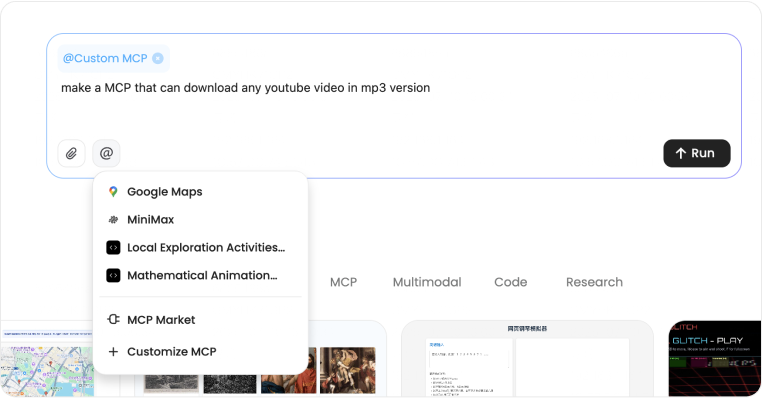
* **MCP**: You can select the MCPs you want the Agent to use for the conversation or request the Agent to build a custom one using "customize" mode.
During task execution, the Agent may ask for the following information. Please respond accordingly: - Supplementary or clarifying information about your requirements. - Configuration details such as Supabase connections or API keys (collected through secure, encrypted methods).
Upon task completion, the Agent will provide: - All files used for the task, including research documents, code files, and summary reports, which are available for download. - If a web page was deployed, a link to the deployed page will be provided for you as well.
The credits consumed by the Agent are calculated based on the actual requirements of each task. To view your history, go to: **avatar (bottom-left) → Credit Balance**.
***
## Tips and Tricks
### General Tips
* **Mid-task instructions**: MiniMax Agent can accept new instructions at any point. Feel free to add new requirements or point out issues you've noticed at any time.
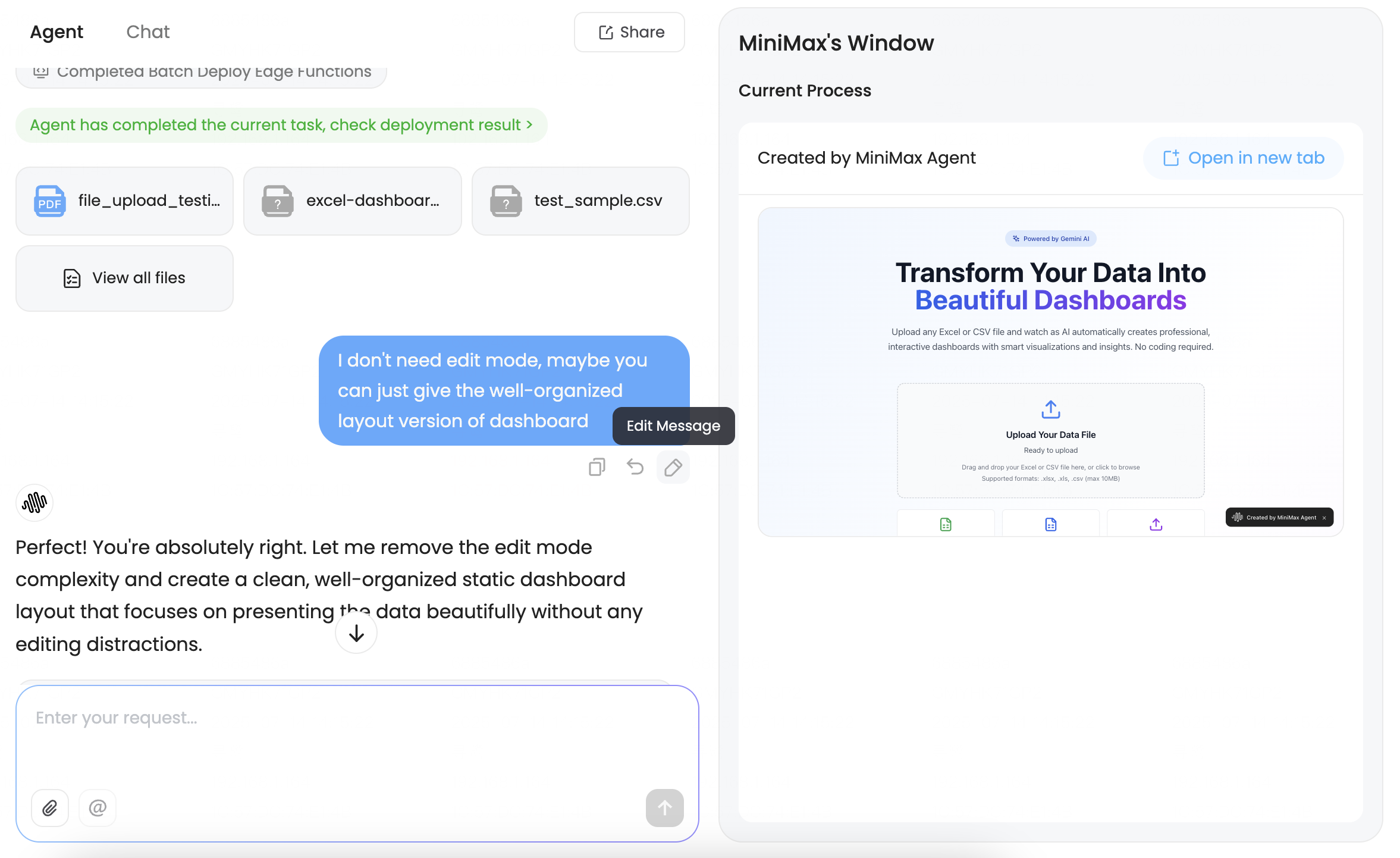
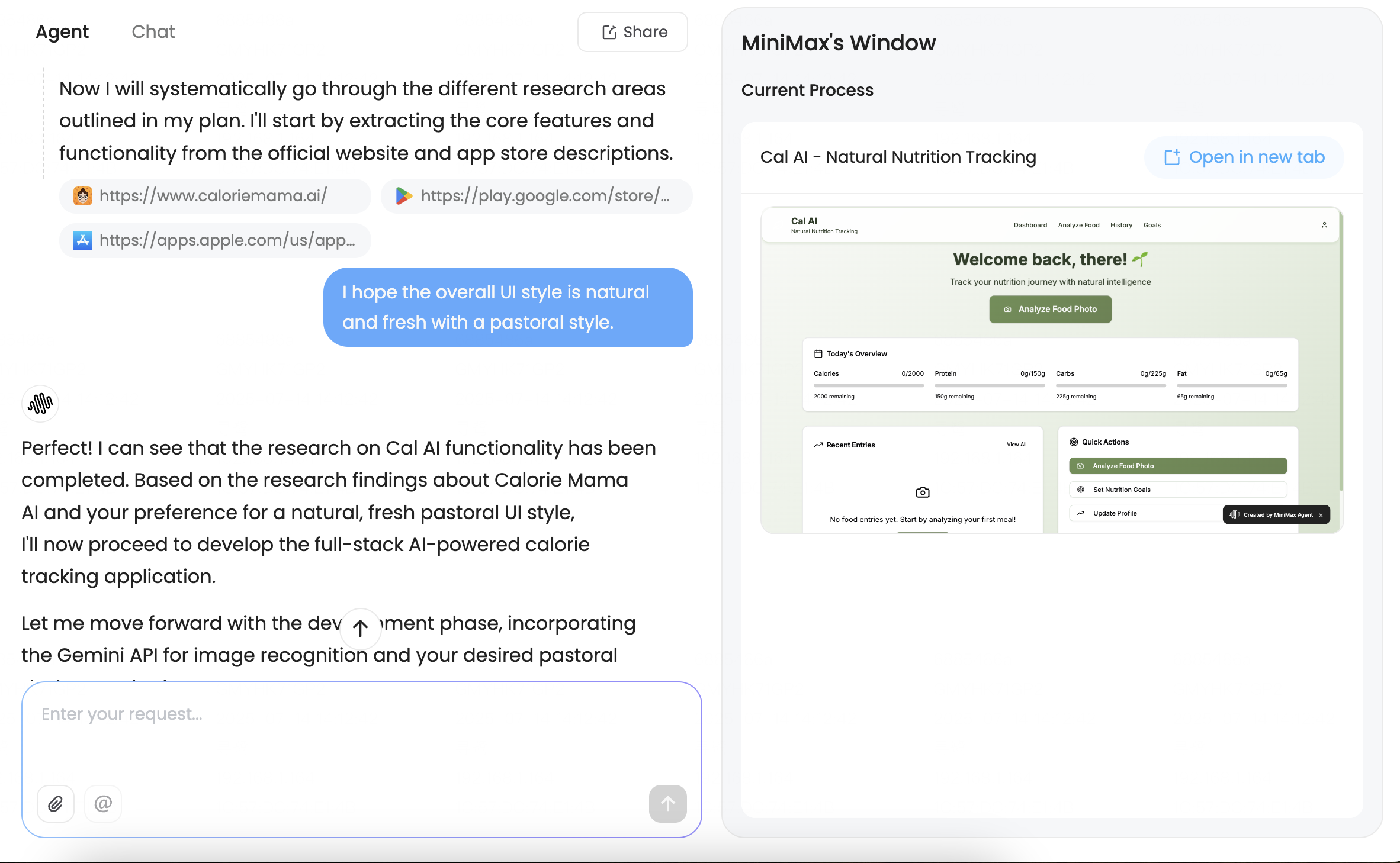 * **Version control**: If you find that a previous instruction or decision was incorrect, you can use the "restore checkpoint" or "edit & regenerate" features to return the Agent to a previous step and re-execute the task.
 * **Be specific**: Provide specific instructions if you have clear requirements. For instance, "generate 20 images" or "research 50 sources" is more effective than "generate some pictures" or "research multiple websites". Providing reference examples of the desired output can also help the Agent better understand your needs.
* **MCP capabilities**: The MiniMax Agent features MCP capabilities with pre-built options. If you need to use an MCP that is not yet supported, you can use the MCP Builder to create any MCP you need and reuse it in the future.
* **Be specific**: Provide specific instructions if you have clear requirements. For instance, "generate 20 images" or "research 50 sources" is more effective than "generate some pictures" or "research multiple websites". Providing reference examples of the desired output can also help the Agent better understand your needs.
* **MCP capabilities**: The MiniMax Agent features MCP capabilities with pre-built options. If you need to use an MCP that is not yet supported, you can use the MCP Builder to create any MCP you need and reuse it in the future.
 ### Code Tips
The MiniMax Agent excels at coding tasks. Here are some tips to help it perform even better:
* The Agent will plan the style and design, but if you have a specific direction in mind, providing preferred image styles, website screenshots, UI design links (the Figma MCP is welcome), or links to websites you'd like to emulate can help reduce the need for multiple revisions.
* If you have specific APIs and versions you want to use (e.g., a particular LLM API model type), clarify these requirements at the beginning. This will significantly reduce the time and cost the Agent spends on research.
* Keep your backend Supabase repository clean and avoid reusing used ones. Similar function names and table structures in an existing repository can confuse the Agent.
### Currently Not Supported
* Agent cannot predict or control its credit usage, and any AI-generated statements regarding credits are not a commitment. Credits will be calculated and deducted based on the actual resources consumed by each task.
* Agent autonomously determines the optimal technology stack (e.g., React, Supabase) for each task based on its own best practices. Requests to use specific, alternative, or advanced frameworks and databases cannot be guaranteed and may result in additional credit cost.
* Agent currently does not support online training and deployment of open source models. In this case, it is recommended that you specify an API to implement similar functions.
***
## FAQ
New registered users receive a set amount of free credits to experience our product. These credits are valid for 3 days, so please use them promptly.
On the main interface, click the subscription status to the right of your
avatar in the bottom-left corner. In the plan management window that appears,
click "Get invoice" at the bottom to access the invoice management page.
Our product uses an auto-renew subscription model by default. Your subscription starts on the day you subscribe and automatically renews after one month. You can cancel auto-renewal at any time during your subscription period.
To cancel, click the subscription status next to your avatar in the bottom-left corner of the main interface, and in the plan management window, click "Cancel auto-renew" at the bottom. The service for the current month will remain active, and the cancellation will take effect from the following month. If you wish to resubscribe, you can do so after the current subscription period ends.
### Code Tips
The MiniMax Agent excels at coding tasks. Here are some tips to help it perform even better:
* The Agent will plan the style and design, but if you have a specific direction in mind, providing preferred image styles, website screenshots, UI design links (the Figma MCP is welcome), or links to websites you'd like to emulate can help reduce the need for multiple revisions.
* If you have specific APIs and versions you want to use (e.g., a particular LLM API model type), clarify these requirements at the beginning. This will significantly reduce the time and cost the Agent spends on research.
* Keep your backend Supabase repository clean and avoid reusing used ones. Similar function names and table structures in an existing repository can confuse the Agent.
### Currently Not Supported
* Agent cannot predict or control its credit usage, and any AI-generated statements regarding credits are not a commitment. Credits will be calculated and deducted based on the actual resources consumed by each task.
* Agent autonomously determines the optimal technology stack (e.g., React, Supabase) for each task based on its own best practices. Requests to use specific, alternative, or advanced frameworks and databases cannot be guaranteed and may result in additional credit cost.
* Agent currently does not support online training and deployment of open source models. In this case, it is recommended that you specify an API to implement similar functions.
***
## FAQ
New registered users receive a set amount of free credits to experience our product. These credits are valid for 3 days, so please use them promptly.
On the main interface, click the subscription status to the right of your
avatar in the bottom-left corner. In the plan management window that appears,
click "Get invoice" at the bottom to access the invoice management page.
Our product uses an auto-renew subscription model by default. Your subscription starts on the day you subscribe and automatically renews after one month. You can cancel auto-renewal at any time during your subscription period.
To cancel, click the subscription status next to your avatar in the bottom-left corner of the main interface, and in the plan management window, click "Cancel auto-renew" at the bottom. The service for the current month will remain active, and the cancellation will take effect from the following month. If you wish to resubscribe, you can do so after the current subscription period ends.
 If you decide to upgrade your plan before the current one expires, we will
calculate the price difference based on the prorated unused portion of your
original plan.
We use secure product methods to request sensitive information required by the Agent, such as API keys and database passwords.
If you decide to upgrade your plan before the current one expires, we will
calculate the price difference based on the prorated unused portion of your
original plan.
We use secure product methods to request sensitive information required by the Agent, such as API keys and database passwords.