Word to PPT Converter for Clearer Presentations

Turn a document's headings, evidence, and recommendations into a presentation built for an audience. MiniMax Code helps reshape long-form material into focused slides while you check what changed.

Start with Your Word to PPT Converter Brief

Choose an example or describe your task, then continue in MiniMax Code.

Sample prompts

Four Documents, Four Presentation Structures

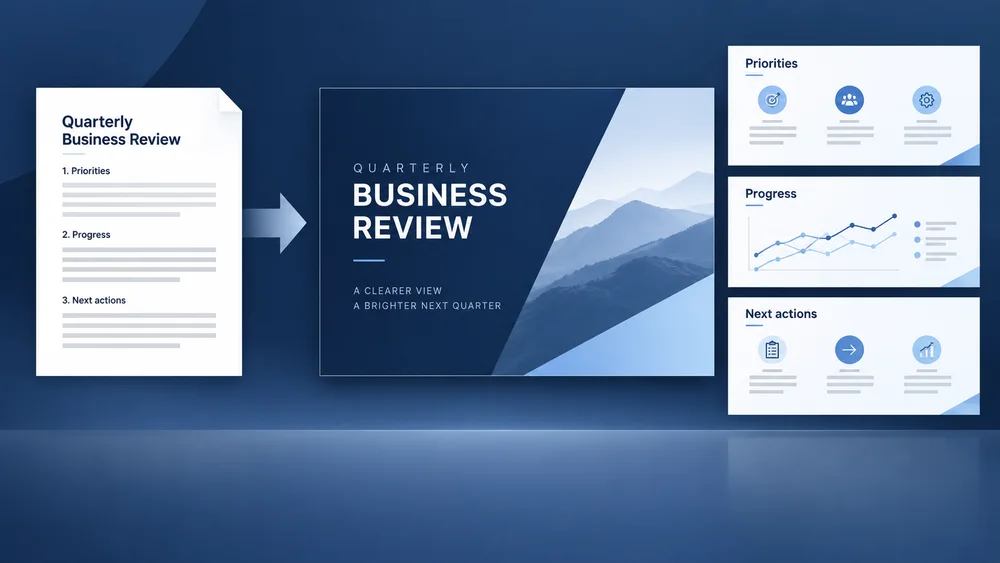
Illustrative document-to-slide concepts show different ways to preserve the message while changing its format.

Illustrative quarterly business review concept for Word to PPT Converter.

Change the Format Without Losing the Message

Plan the brief, develop the work, and review the details with Word to PPT Converter.

Document Structure

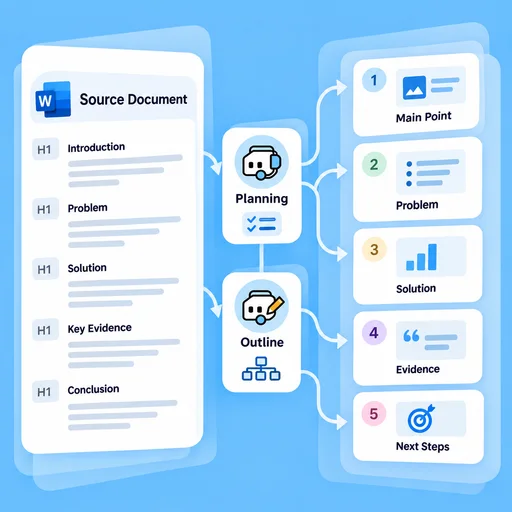
Map Sections to a Slide Story

Use headings, summaries, and supporting material to identify the main argument. Group related points into an audience-friendly sequence instead of turning every paragraph into a slide.

Try Now
Word to PPT Converter workflow illustration: Map Sections to a Slide Story.

Content Fidelity

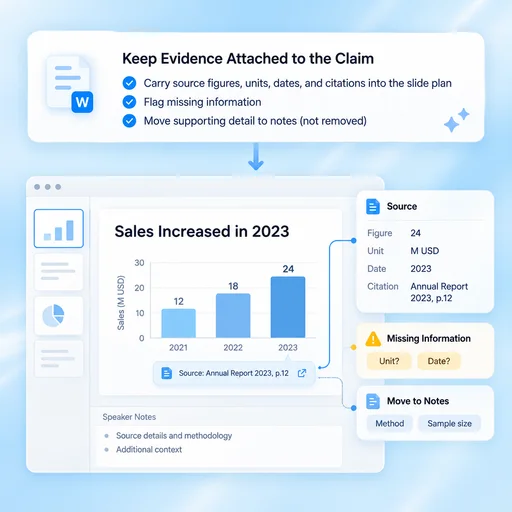
Keep Evidence Attached to the Claim

Carry source figures, units, dates, and citations into the slide plan. Ask for missing information to be flagged and supporting detail moved to notes rather than silently removed.

Try Now
Word to PPT Converter workflow illustration: Keep Evidence Attached to the Claim.

Presentation Review

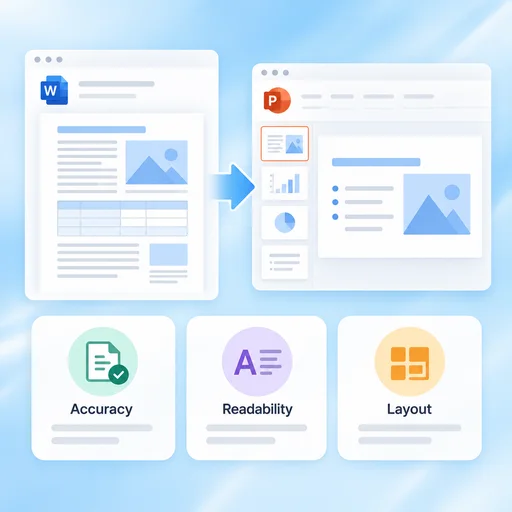
Review What Was Condensed or Changed

Compare the draft with the original document, check slide readability, and test the output in your presentation app. Complex tables and page layouts may need manual adjustment.

Try Now
Word to PPT Converter workflow illustration: Review What Was Condensed or Changed.

A More Connected Word to PPT Converter Workflow

A comparison of working approaches, not a measured performance claim. Review the output before using it.

Working Manually

Structure
Move paragraphs onto slides one by one
Detail
Decide manually what to remove from each slide
Verification
Re-read the source after formatting

With MiniMax Code

Structure
Propose a presentation storyline from document sections
Detail
Separate on-slide messages from supporting notes
Verification
Review content changes and source references together

Get Started with Word to PPT Converter in Four Steps

Start with the right inputs and keep a human review before the final handoff.

  1. Step.01

    Describe the Presentation Goal

    State the audience, meeting purpose, desired length, and tone in the prompt. The page sends only text to MiniMax Code.

    Word to PPT Converter step 1: Describe the Presentation Goal.
  2. Step.02

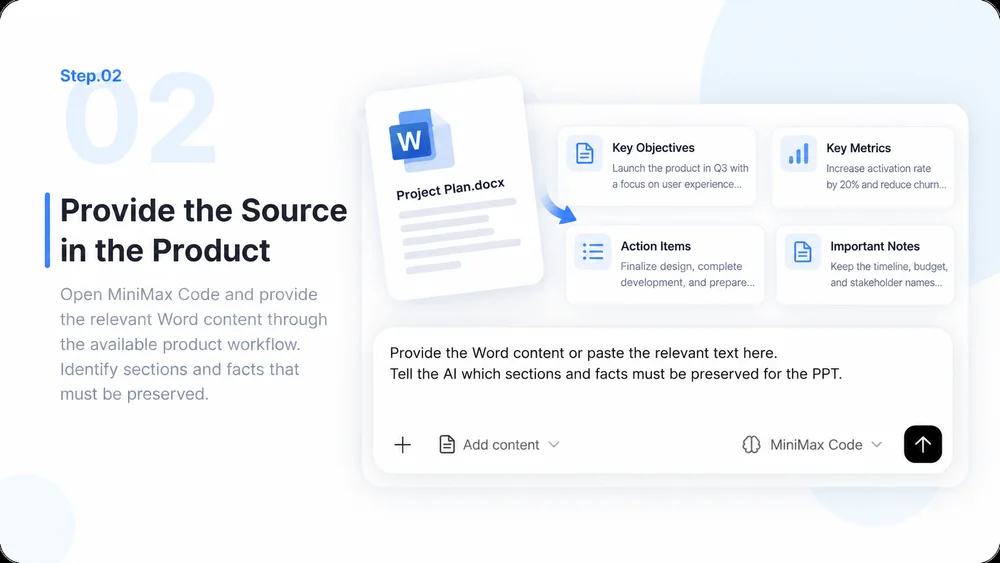
    Provide the Source in the Product

    Open MiniMax Code and provide the relevant Word content through the available product workflow. Identify sections and facts that must be preserved.

    Word to PPT Converter step 2: Provide the Source in the Product.
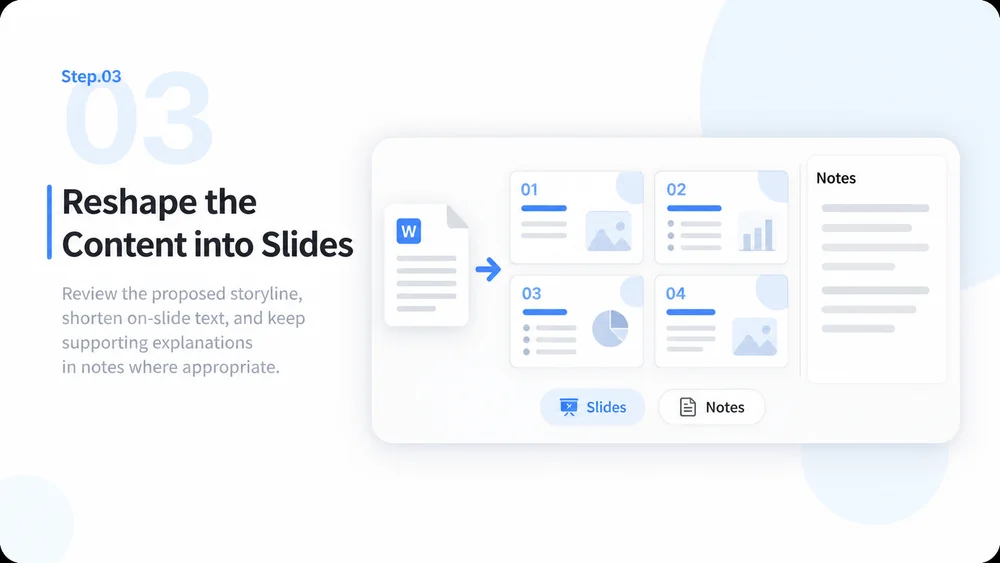
  3. Step.03

    Reshape the Content into Slides

    Review the proposed storyline, shorten on-slide text, and keep supporting explanations in notes where appropriate.

    Word to PPT Converter step 3: Reshape the Content into Slides.
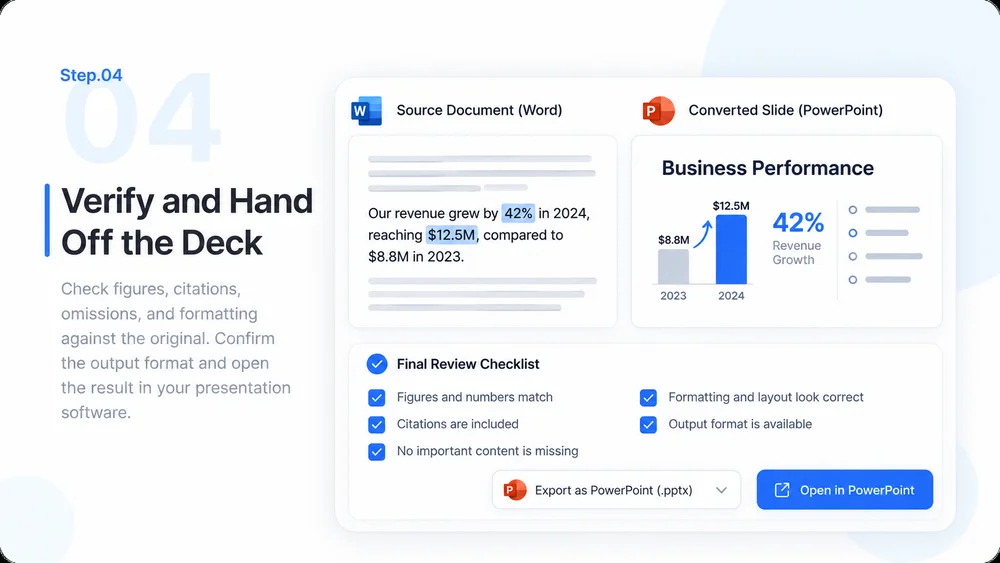
  4. Step.04

    Verify and Hand Off the Deck

    Check figures, citations, omissions, and formatting against the original. Confirm the available output format and open the result in your presentation software.

    Word to PPT Converter step 4: Verify and Hand Off the Deck.

Word to PPT Converter FAQs

Practical answers about inputs, scope, review, and where the work happens.

Turn Your Next Document into a Focused Presentation