M3.1-Flash-Preview for Everyday Expert Work

Build and debug software, analyze financial models, and turn visual references into interactive work with MiniMax Code.

Start with a real task

Take a prompt to MiniMax Code, then confirm model access and provide the required source files there.

Try a prompt adapted from a documented case

Choose a workflow

Real Tasks. Documented Results.

Four examples from the M3.1-Flash-Preview guide. Prompts are shortened for reuse; tasks with files require you to provide those inputs in MiniMax Code.

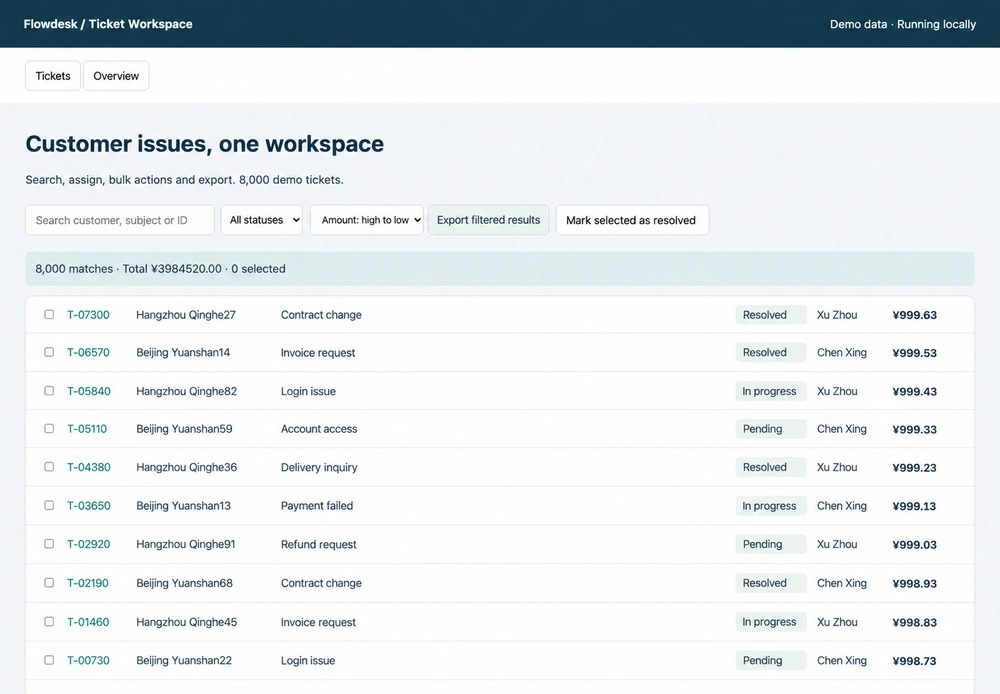
English-localized Flowdesk interface from the documented support-ticket performance case

Flowdesk support-ticket optimization: the guide includes the repaired interface and a separate three-run performance comparison using the same 8,000 records. This is one documented case, not a general speed guarantee.

From Investigation to Working Outputs

Use MiniMax Code as the working environment for the model's coding, research and visual reasoning capabilities. Available tools and your source materials shape the result.

Engineering

Diagnose, change, and verify

Read a codebase, trace a failure, implement a focused fix, and check regressions. The guide pairs real GitHub issue work with Flowdesk browser profiling, so the emphasis is on evidence from tests and measurements—not only plausible code.

Open MiniMax Code
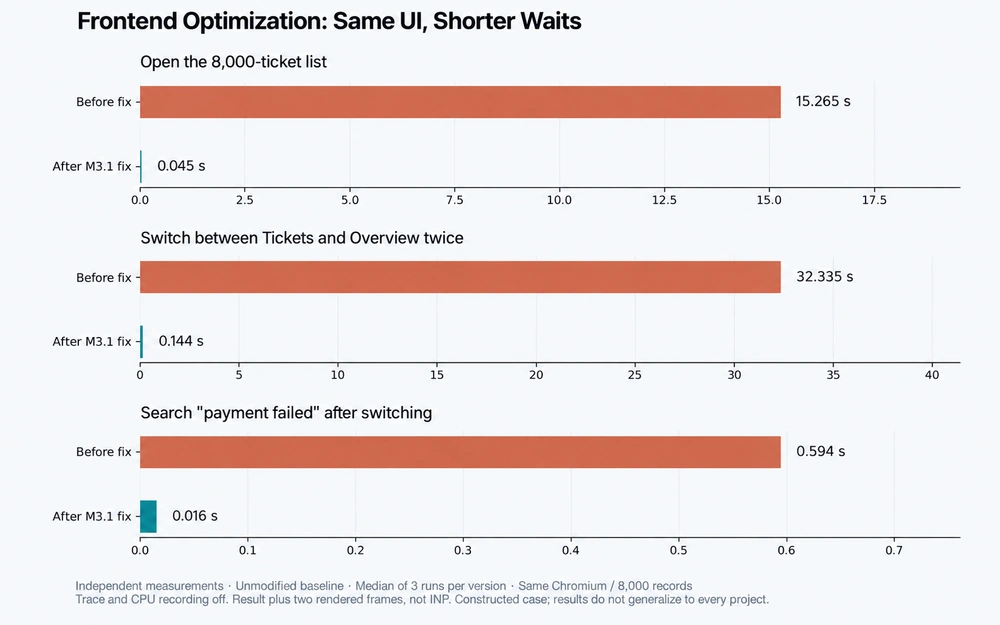
English-localized Flowdesk performance chart comparing three-run medians on the same 8,000-record dataset

Research

Make assumptions and sources inspectable

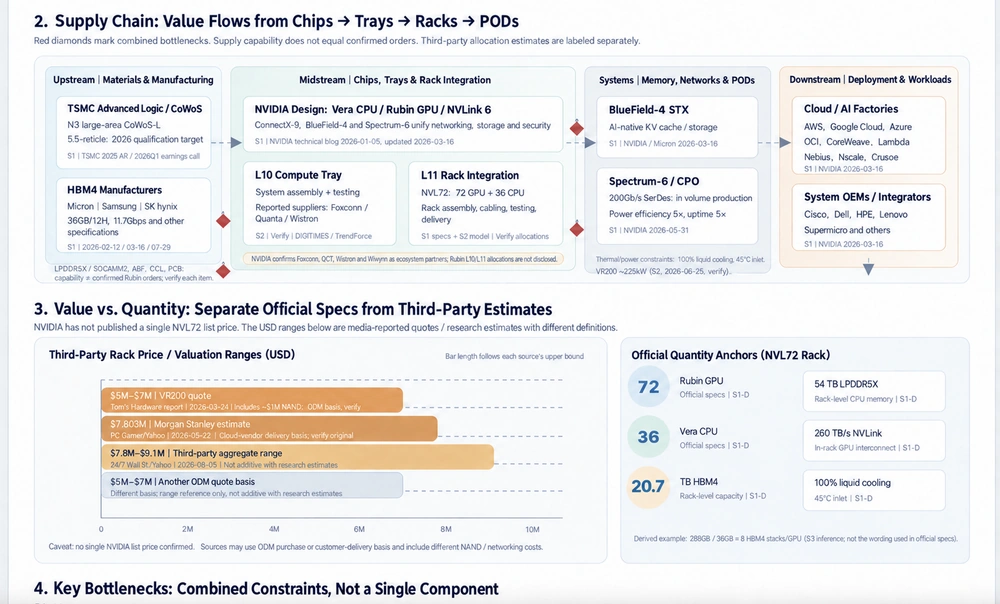
Break down a company or industry question into sources, calculations and uncertainty. The Vera Rubin example separates supply-chain layers and evidence status; the financial workbooks distinguish historical data, assumptions and formula-driven estimates.

Open MiniMax Code
English-localized Vera Rubin supply-chain diagram with source and evidence distinctions

Visual creation

Turn visual references into interactive code

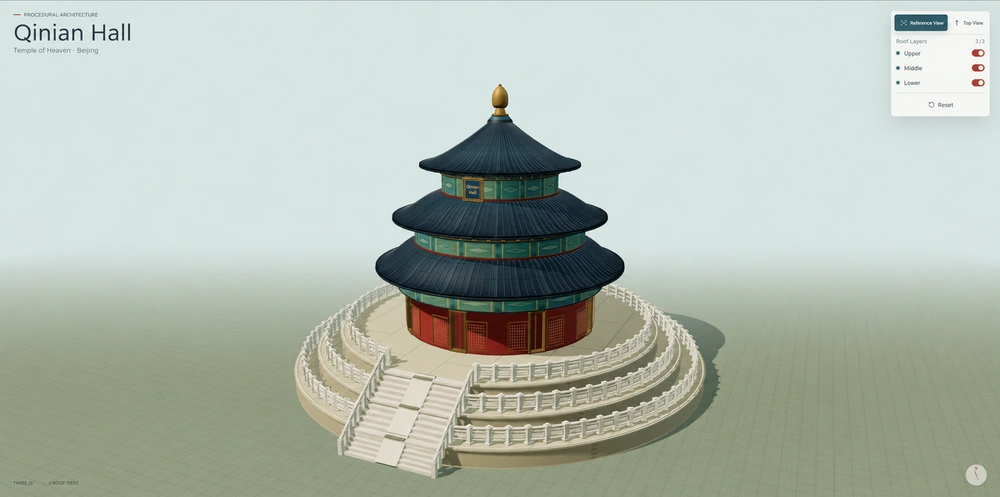
Use images and video as inputs for analysis, then work with code and tools on the next step. In the guide's Qinian Hall case, reference photos lead to a procedural Three.js model with orbit, zoom and layered roof controls.

Open MiniMax Code
English-localized Qinian Hall Three.js reconstruction from the documented case

What Changes from MiniMax-M3?

A practical migration comparison from the supplied preview guide. Confirm the current API behavior before changing a production integration.

M3.1-Flash-Preview

Reasoning
Always enabled; cannot be disabled
Reasoning effort
Low, Medium, High, Xhigh and Max; Max is the guide's default recommendation
Reasoning response
Separate reasoning_content; handle absent values
Context window
1,000,000 tokens
Inputs and output
Text, image and video inputs; text output
Prompt caching
Supported

MiniMax-M3

Reasoning
Can be enabled or disabled
Reasoning effort
No configurable effort in this comparison
Reasoning response
Separate field or inline <think> representation, depending on configuration
Context window
1,000,000 tokens
Inputs and output
Image and video inputs supported
Prompt caching
Supported

How to Start with M3.1-Flash-Preview

Four checks for trying a documented workflow or updating an existing API integration.

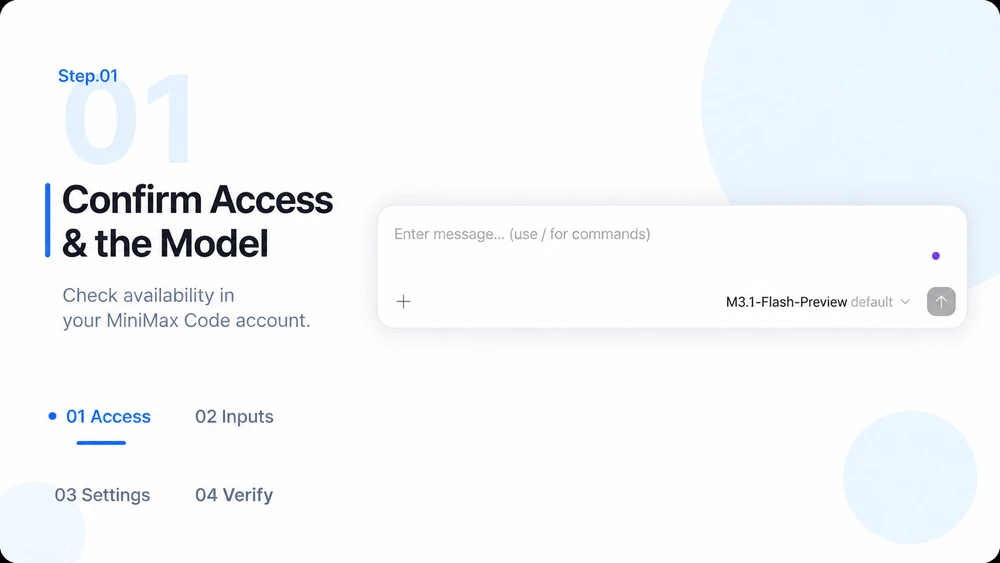
  1. Step.01

    Confirm access and the model

    Open MiniMax Code and check the models available to your account. This page sends a text prompt; it does not automatically select or provision M3.1-Flash-Preview. For an API integration, the guide specifies the model ID below. Model field only — not a complete API request: { "model": "MiniMax-M3.1-Flash-Preview" }

    Step 01 workflow illustration composited from the user-provided MiniMax Code interface showing M3.1-Flash-Preview default
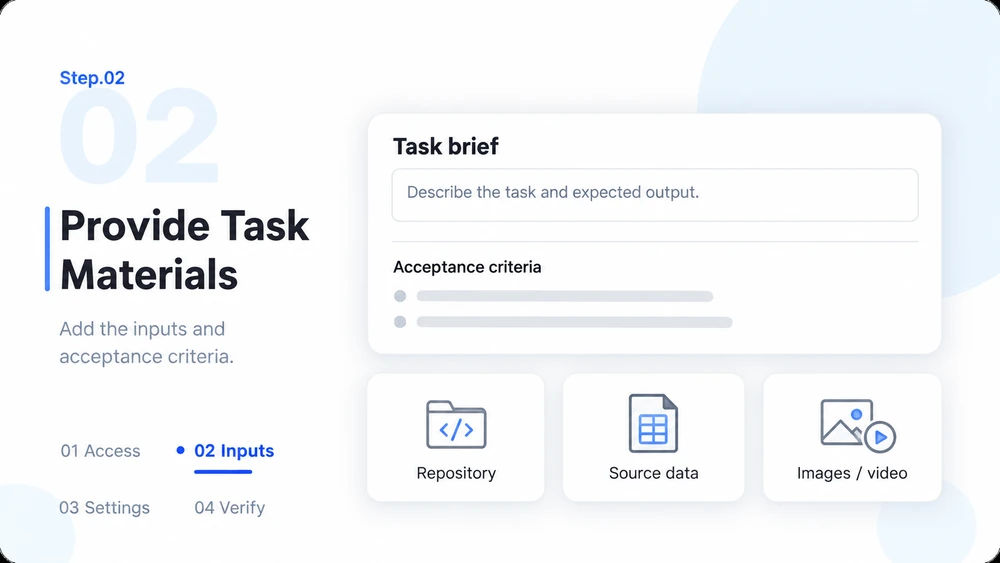
  2. Step.02

    Supply the actual task materials

    For coding, provide the repository, reproduction steps and acceptance criteria. For research, provide source data and dates. For visual analysis, attach the original images or video. The examples on this page are references: their files are not transferred by the CTA.

    Workflow illustration for supplying task details, a repository, source data and visual inputs
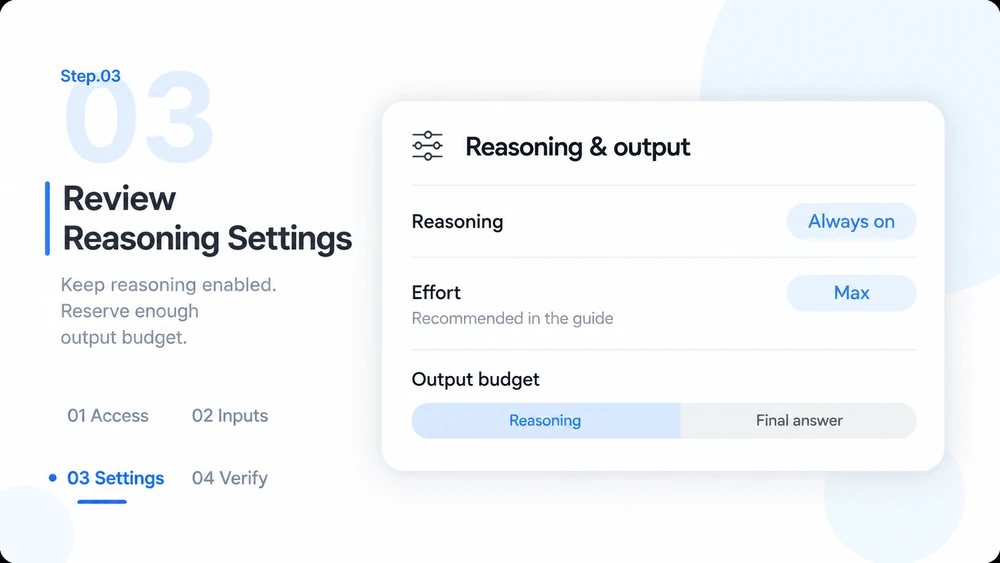
  3. Step.03

    Review reasoning and output settings

    Reasoning is always enabled. The guide recommends Max effort by default and also lists Low, Medium, High and Xhigh. Remove thinking.type=disabled and effort=none when migrating; these settings return an error. Reserve enough output budget for reasoning and the final answer.

    Workflow illustration for always-on reasoning, recommended Max effort and output budget planning
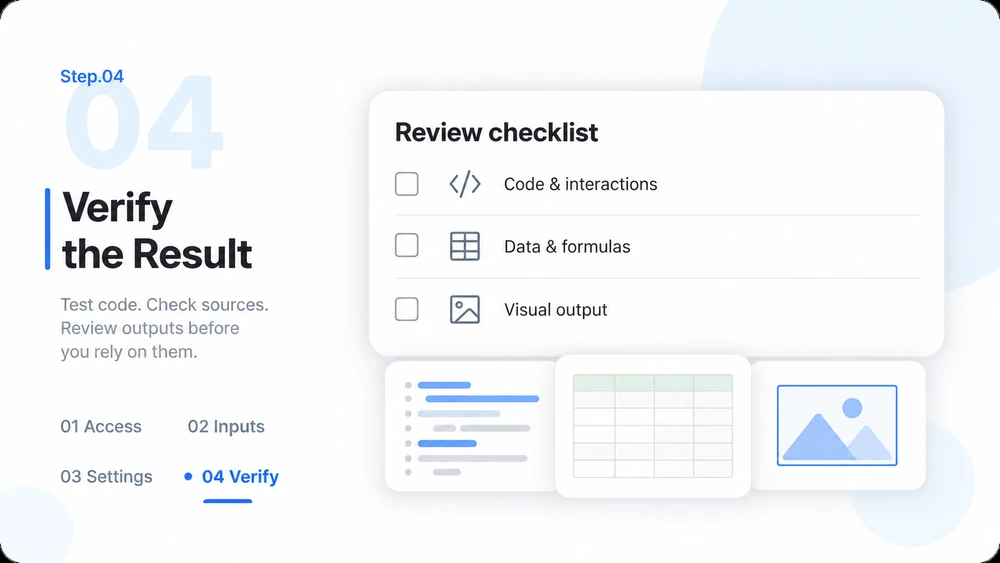
  4. Step.04

    Verify before you rely on the result

    Read reasoning_content only when present; update integrations that depend on reasoning_details or inline <think> parsing. Test code and browser interactions, review spreadsheet formulas and sources, and inspect visual results. Case outcomes are examples, not guarantees for every task.

    Workflow illustration of a review checklist for code, data formulas and visual output

M3.1-Flash-Preview FAQ

Model capabilities, real-case provenance and practical integration boundaries.

Bring Your Next Real Task to MiniMax Code