

MiniMax Code supports video generation with H3 and H3 Max. Describe a scene or upload reference media, and the Agent will help you develop your idea, refine the prompt, and generate a video. You can plan the script, work out the shots, and review the results in the same conversation.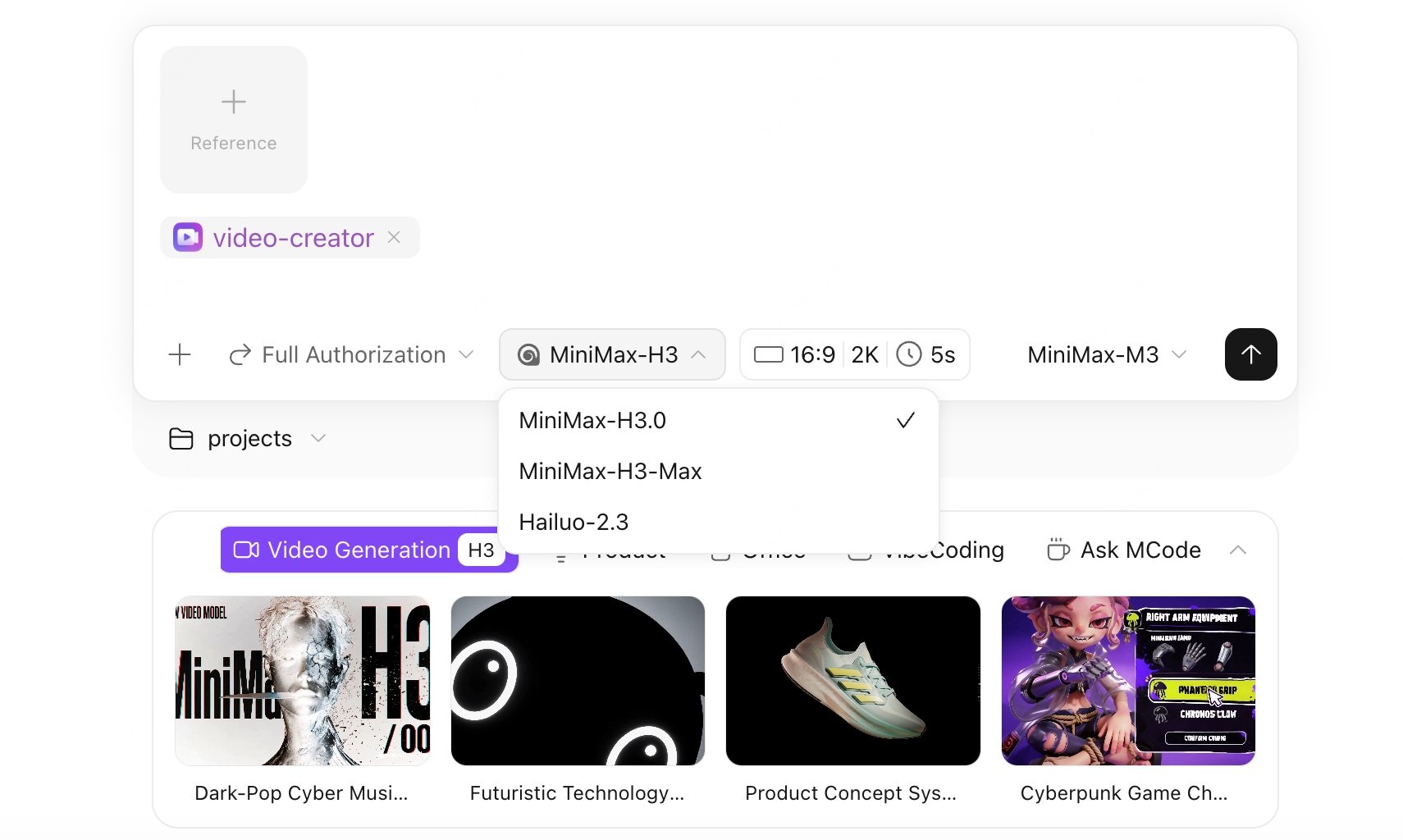
What You Can Do
- Generate video from text: Describe your subject, action, setting, and camera movement to turn your idea into a video.
- Animate an image: Upload an image and describe how you want the scene to move.
- Combine different references: H3 lets you use images, video, and audio together to guide the characters, actions, visual style, and sound in your video.
- Generate video with synchronized sound: Describe the dialogue, music, or ambient sounds you want alongside the visuals.
- Refine your ideas: After reviewing a result, continue the conversation to adjust your prompt or reference media and generate a new version.
Choose a Model
How to Use It
1
Describe your idea
Tell the Agent you would like to create a video and select H3 or H3 Max through the video generation plugin. Describe what you want the video to convey, including the visuals, action, and sound. If you are still developing the idea, you can ask the Agent to help plan the script and shots first.
2
Add reference media
Upload your reference media and explain how you want each file to be used. When combining references with H3, specify which characters, actions, styles, or sounds to preserve and which elements you would like to reimagine.
3
Set your video options
Choose your preferred video length, aspect ratio, and resolution from the options supported by your model. Before starting, check that the prompt and reference media reflect what you want to create.
4
Review the result
Play the generated video to check the visuals, motion, text, and sound. If anything needs adjusting, describe the changes in the same conversation so the Agent can generate a new version based on your feedback.
AI Watermark
When generating images, you can choose to disable the AI watermark. You can also change this later from Settings → General → AI Watermark. The default watermark style has also been adjusted to interfere less with generated images.Things to Know
- Video generation with H3 and H3 Max uses credits and is not included in your Token Plan allowance.
- Supported reference media, video lengths, and resolutions vary by model. Refer to the options currently available in the app.
- H3 requires an image or video alongside any reference audio; audio alone cannot be used as a reference.
- Before using a video, review any important text, character dialogue, or brand details carefully.