

Mini Apps bring your information, tools, and everyday tasks together in a single interface. Describe what you want to build, and the Agent will create it for you. You can use your Mini App directly and keep refining it through conversation, adding modules, adjusting the layout, or connecting data sources to suit your workflow.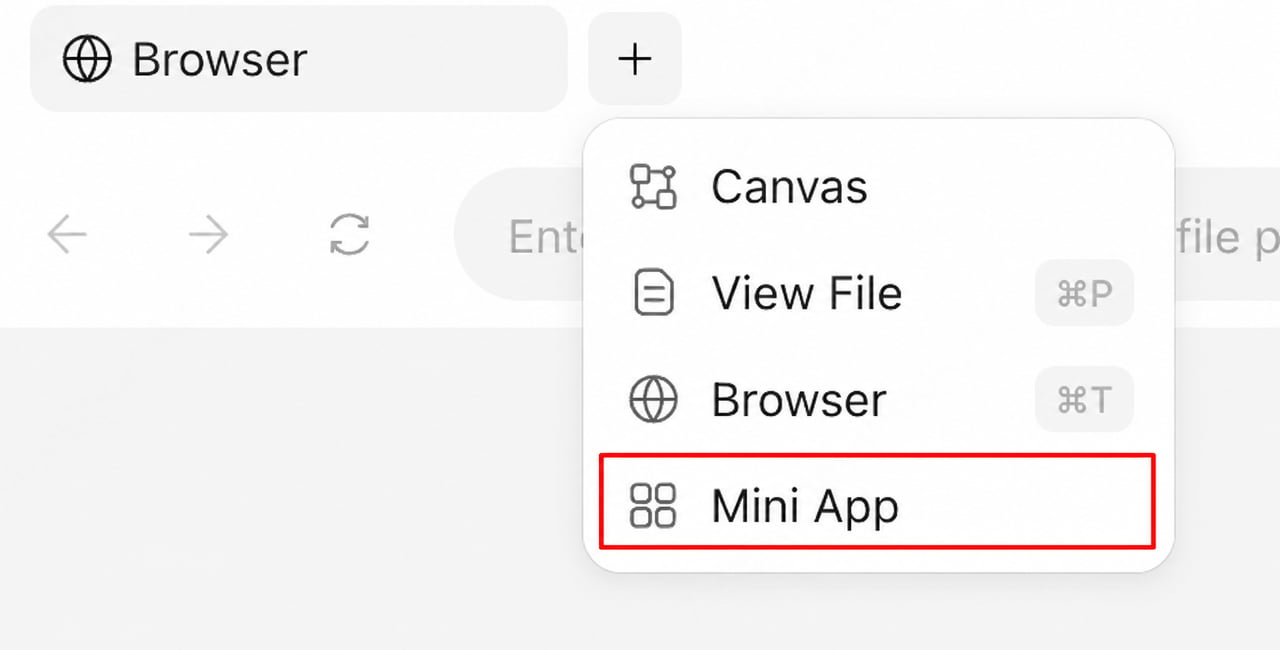
When to Use Them
- Build a custom workspace: Describe the information you want to see and the tasks you need to complete, and let the Agent build the interface and features.
- Connect your tools and data: Bring in existing tools, apps, or data services so you can view and work with their data in your Mini App.
- Work directly in MiniMax Code: Use your Mini App in the desktop app while continuing your conversation with the Agent alongside it.
- Refine it as you go: Ask the Agent to add features, update the interface, or adjust your data connections as your needs change.
How to Create One
1
Describe the workspace
Ask the Agent to create a Mini App, explaining its purpose, the information it should display, and what you want to do with it. Include any files, tools, or data sources you would like to use.
2
Create and preview
The Agent will build your Mini App based on your request. Follow any prompts to connect third-party accounts or authorize access to data services. Once your Mini App is ready, you can open and use it in the right-hand panel of MiniMax Code.
3
Refine with natural language
Describe any changes you want in the conversation, and the Agent will update your Mini App. Review the results and continue refining the features and layout until they work for you.
4
Open it again
To return to a Mini App, select it from the Mini App menu. MiniMax Code will launch it and display it in your current conversation.