

Every conversation creates a task record. The sidebar lets you switch tasks, search history, pin important items, and archive completed work.Desktop-cloud collaboration brings local and cloud tasks together in MiniMax Code. Choose where a task runs, return to existing conversations, or send a local task’s context and selected files to the cloud. When results are ready, you can view and download cloud outputs in the desktop app; when cloud work changes local project files, review the changes before writing them back to your workspace.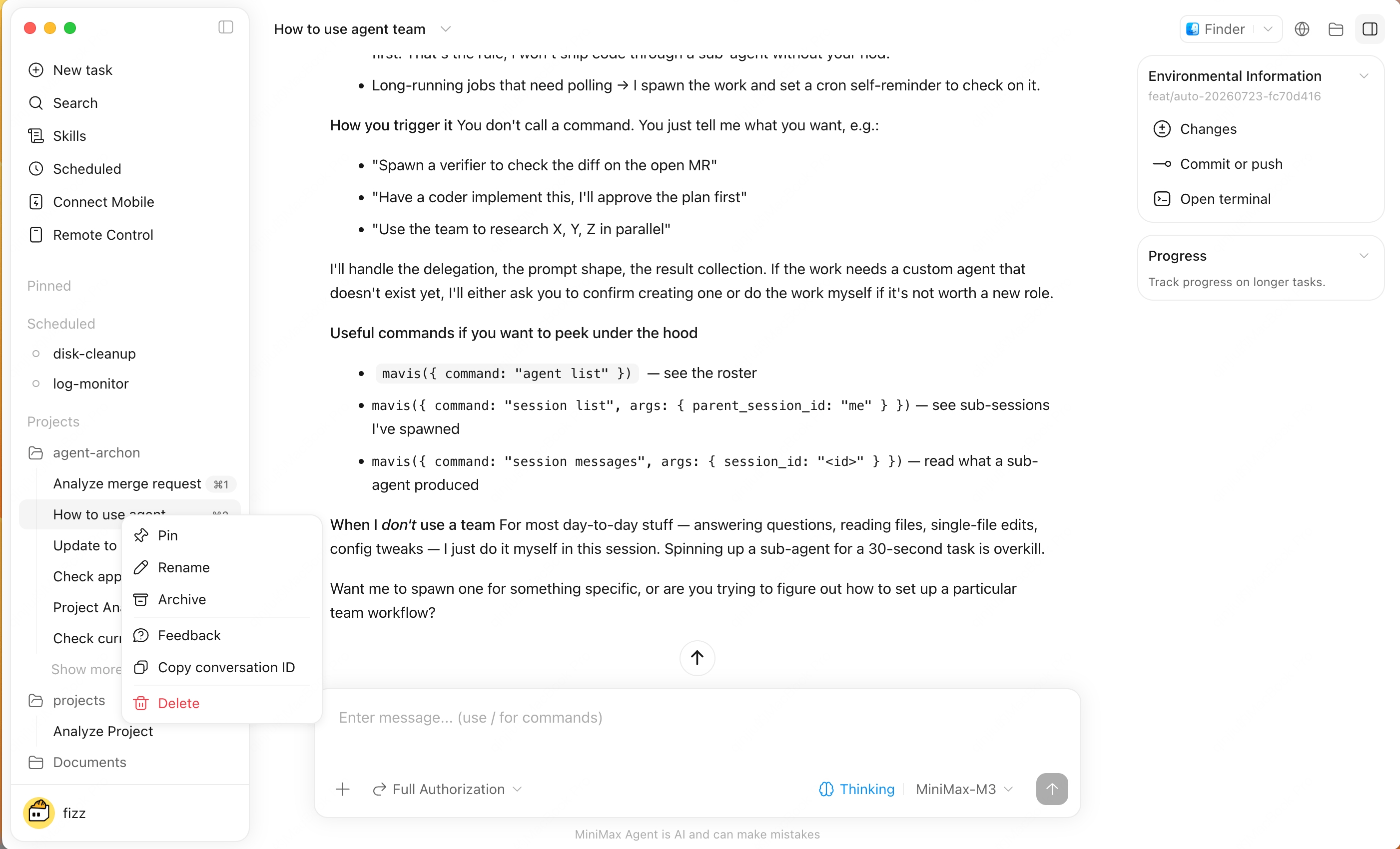
Local, Cloud, and Task Handoff
How to Use It
1
Choose where your task runs
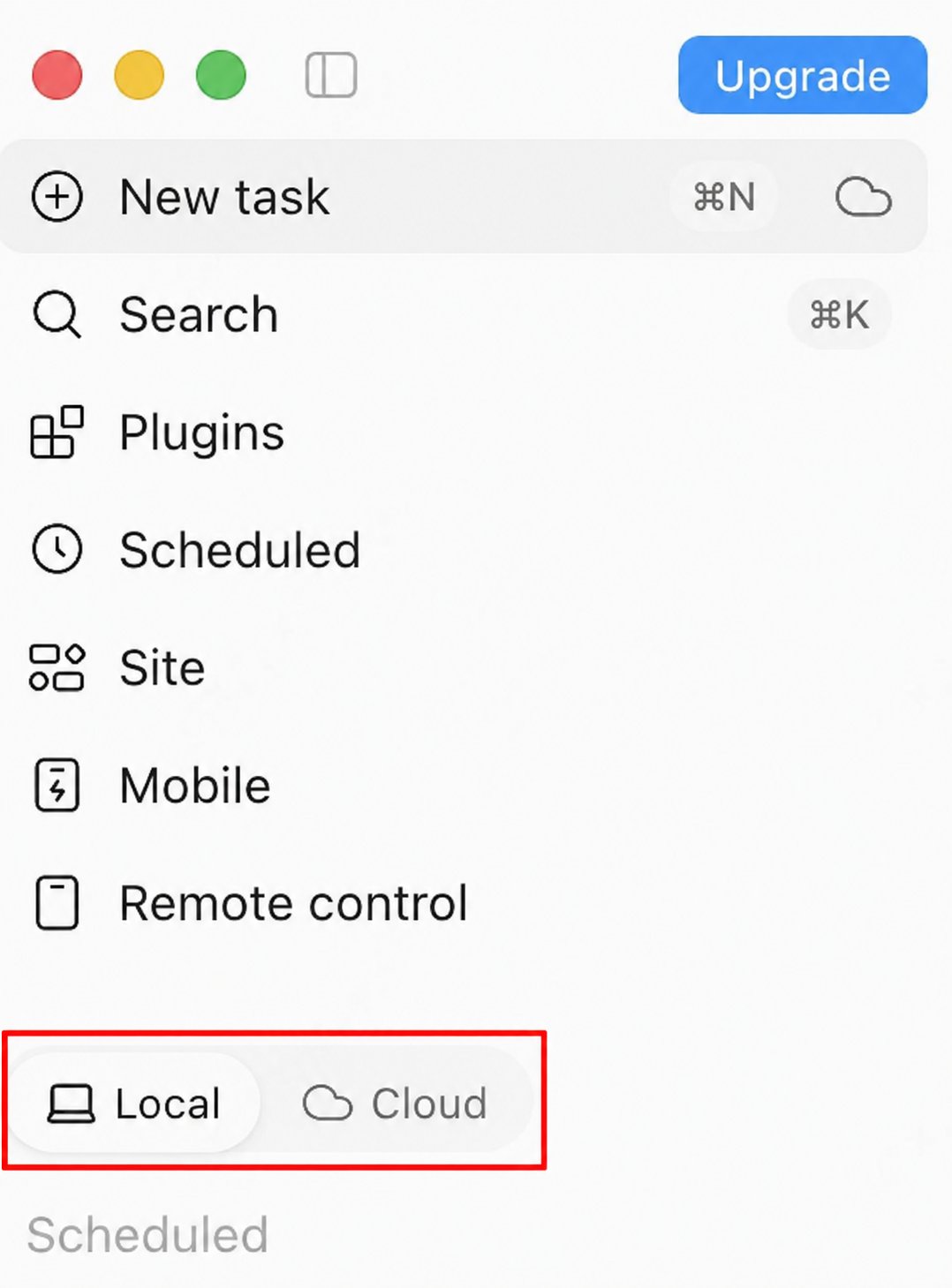
Create a new conversation in the MiniMax Code desktop app and select the cloud option using the local/cloud control near the message box. You can choose a cloud project if needed. If the task needs files from your computer, attach them before sending.
2
Describe your task
Tell the Agent what you need it to do. If the task requires files from your computer, attach them before sending your request.
3
Check progress and continue the conversation
Open the cloud conversation in the desktop app to see the Agent’s responses and progress. You can add information, request changes, or return to the task later from the conversation list.
4
View and download files
Once results are available, you can view them in the conversation. Use the download option to save any files you want to keep or work with on your computer.
5
Hand off a local task
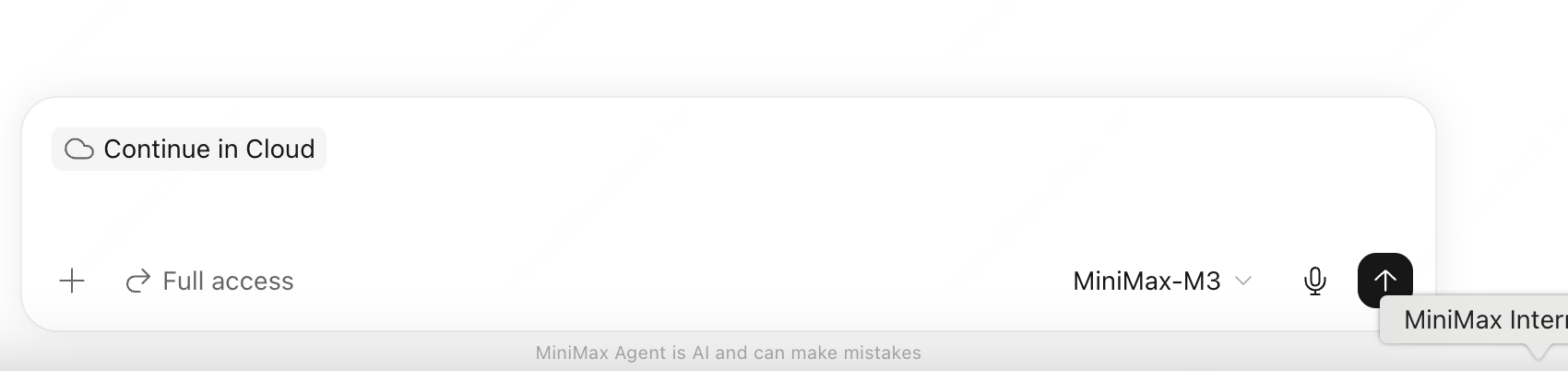
For a task with a local workspace selected, type
/ in the message box and choose Continue in Cloud. Describe what should happen next, review the recommended resources card, and confirm the files before starting the handoff.6
Sync cloud changes
If the cloud task changes files related to your local project, use View changes to inspect added, modified, and deleted files, then download a copy or overwrite the original workspace.
Things to Know
- Cloud tasks use the files you attach or select during handoff. Add any further local materials the cloud task needs.
- Each handoff file and the total selected files must be no larger than 500 MB. Wait for the handoff to complete before leaving your computer.
- Local and cloud project files do not continuously sync. Later local edits are not uploaded automatically, and cloud changes are applied to the original workspace only after you confirm.
- The original local task remains available. After handoff, the local and cloud tasks keep later conversations and file changes separately.
Sidebar Areas
- New Task
- Search
- Pinned tasks and Agents
- Project-grouped history
- Agent Team
- Scheduled tasks
- Archived tasks