

MiniMax Code notifies you when new versions are available. If you run into an issue, submit feedback directly from the app; MiniMax Code can attach screenshots, task context, and diagnostic logs automatically.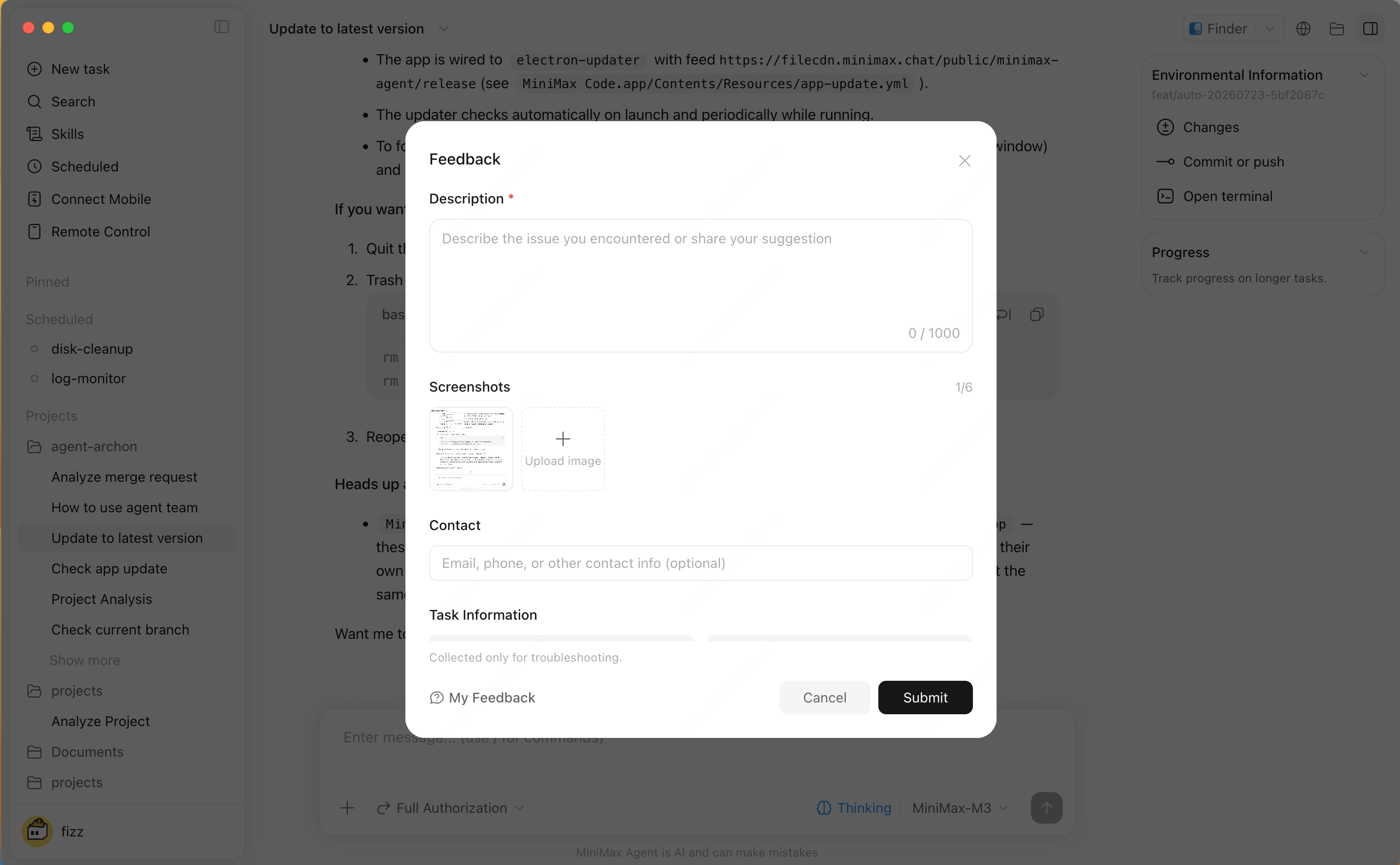
Check for Updates
Open desktop settings to see the current version and check for updates. When an update is downloaded, follow the prompt to restart or install.In-App Notifications
Click the bell in the bottom-left corner of the app to open notifications. Release updates, official activities, tutorials, and account-related reminders are collected in one place.Use notifications for messages that are worth keeping visible but do not always require immediate action, such as feature announcements, campaign updates, or account status changes.Submit Feedback
1
Open feedback
Open Feedback from the user menu, Help entry, task top bar, or session menu in the sidebar. The Upload Logs button in Settings opens the same feedback dialog.
2
Describe the issue
Enter the issue or suggestion. Description is required; contact information is optional.
3
Review screenshots and task context
The desktop app attempts to capture the current window automatically. You can also upload images manually, up to 6 screenshots. When feedback is opened from a task, MiniMax Code attaches the task title, session ID, workspace path, client version, and system information.
4
Submit and track status
Submit the form to create a feedback ticket. Use My Feedback at the bottom of the dialog to view status or copy the ticket ID for follow-up.
Screenshots and diagnostic logs are collected only for troubleshooting. If screen recording permission is unavailable, automatic capture may fail, but you can still upload screenshots manually and submit feedback.