

In Settings → Appearance, you can adjust how MiniMax Code looks. Theme, density, and font settings apply across the desktop app.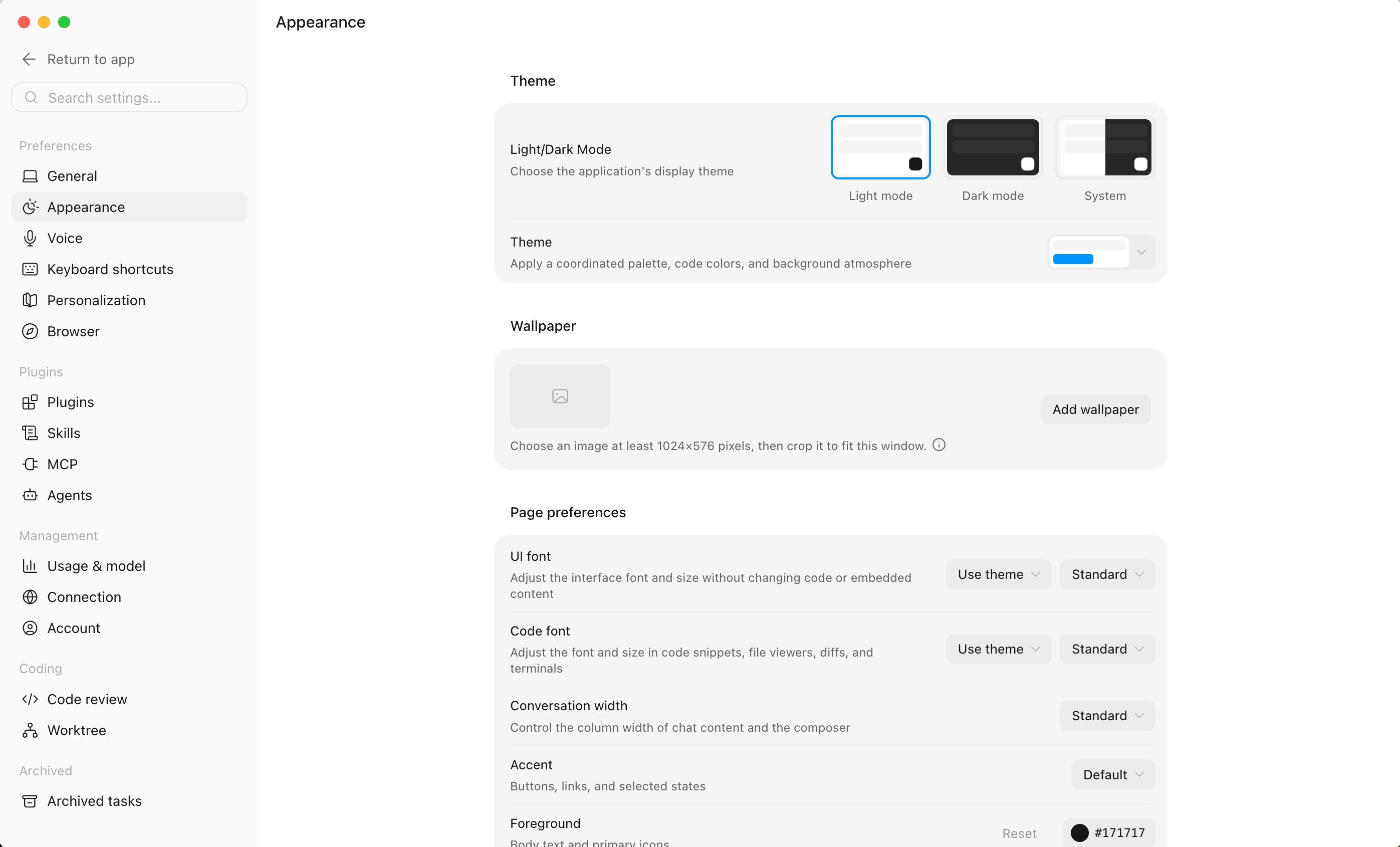
Display Mode
Choose light, dark, or follow system. This setting is independent of the theme and applies to every theme.Themes
Themes such as Default, Graphite, and Warm set the overall look of the interface.Wallpaper
Alongside theme colors, you can use your own image as the app wallpaper and fine-tune how it appears. Wallpaper settings sit on the same page as the theme; once an image is added, controls for crop, blur, dim, and saturation expand underneath it.- Images must be at least 1024×576 pixels, in PNG, JPEG, WebP, or AVIF format, and no larger than 20 MB
- Crop, blur, dim, and saturation can be adjusted to fit the current window
- With automatic colors enabled, accent, foreground, and background colors are matched from the wallpaper. Turn it off to set colors separately for light and dark modes
Consider enabling enhanced readability when using a wallpaper, so body text stays clear against the background.
Page Preferences
- Interface density: Adjusts control height, list spacing, and page margins together. Choose compact, comfortable, or airy
- Conversation width: Controls the column width of chat content and the input box. Choose standard or full width
- Page contrast: Adjusts the visual strength of borders, hover states, and control hierarchy
Advanced
- UI font and weight: Changes the base font and size of the desktop interface, without affecting code or embedded content
- Code font and weight: Changes the font and size used in code snippets, the file viewer, diffs, and the terminal
- Page colors: Overrides accent, background, and foreground colors separately for light and dark modes