

This page applies to common startup and unresponsive-app issues in current MiniMax Code versions. Windows clients after
3.0.48 no longer depend on OpenCode, so troubleshooting steps for older OpenCode / daemon behavior are not used as the basis for current versions.Startup Failure - Type 1
If you seeutility exited before ready (code=9) during startup, this currently affects some macOS x64 (Intel) users.

Windows Browser Launch Failure
If Desktop login showsFailed to open: 找不到应用程序。 (0x800401F5) or returns no_default_browser, Windows usually does not have a usable default browser or the browser association is broken.
Workaround:
- Install a browser such as Edge or Chrome.
- Set it as the Windows default browser.
- Restart MiniMax Code and try again.
General Issues
MiniMax Code fails to start
If MiniMax Code shows a startup error, first check whether the issue is caused by an older installer.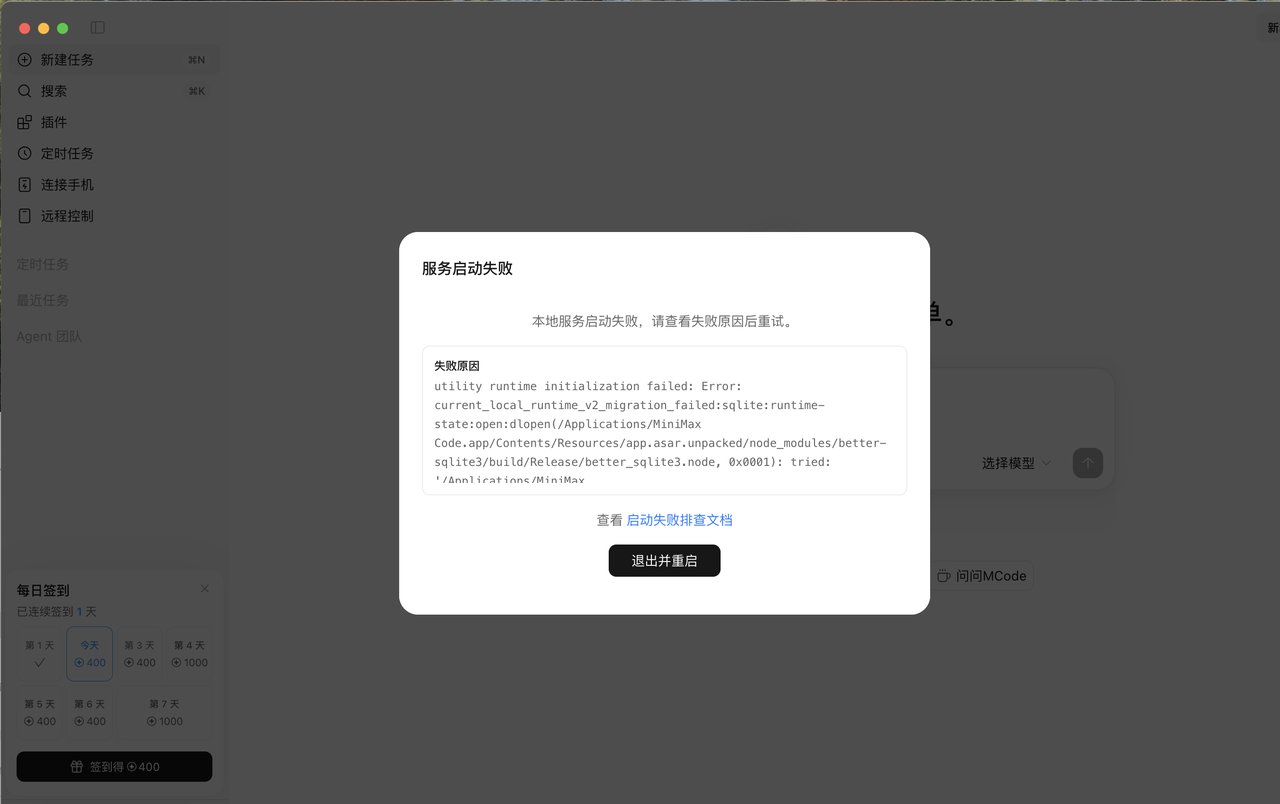
MiniMax Code is not responding
If the app freezes, a request stays pending for a long time, or the page stops producing output, check the following in order:- Confirm that your network connection is working.
- If you installed the Mainland China version and the issue looks like a timeout, check whether your computer is connected to a proxy.
- Check the service status indicator at the bottom of the app.
- Fully quit and restart the app.
- If the issue continues, upload logs from Settings and contact support.
MiniMax Code service fails to start
If you see a “service startup failed” dialog, first check for leftover processes, then check whether.mavis and .minimax exist and look valid in the current user’s home directory.
End leftover processes first
Windows:- Open Task Manager.
- Search for
minimax. - End the related processes.
- Wait about 10 seconds.
- Restart the app.
- Open Activity Monitor.
- Search for
minimax. - Force quit the related processes.
- Wait about 10 seconds.
- Restart the app.
Check user data directories
If the service still fails to start after restarting, check.mavis and .minimax under the current user’s home directory.
Windows PowerShell:
.mavis and .minimax and restart the app.
Back up and delete data directories
Windows PowerShell:The login button does not respond
The login redirect may be blocked by a proxy or system policy. Open the login link directly in your browser:- Mainland China: https://agent.minimaxi.com/login?sso=1
- Global: https://agent.minimax.io/login?sso=1
Windows Issues
Installation or update fails because the file path is too long
An overly long installation path can cause installation or updates to fail on Windows. The installer may report that MiniMax Code cannot be closed and ask you to close it manually before clicking Retry.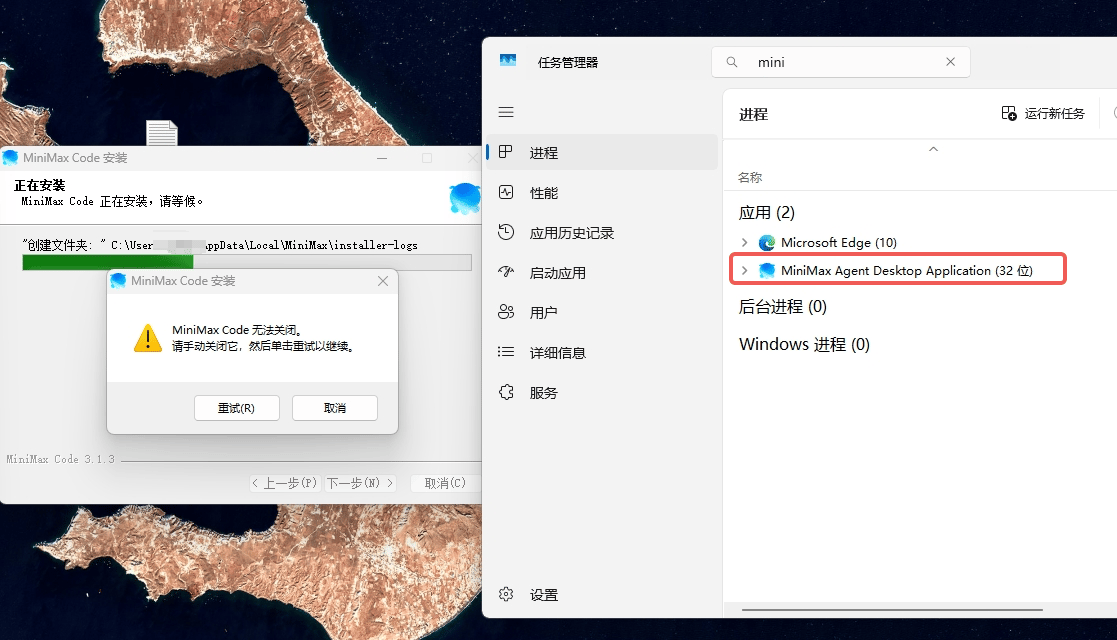
Why this happens
Traditional Win32 file operations have aMAX_PATH limit of 260 characters, including the terminating null character. This applies to the full path: the installation directory, nested folders, and file name. Some resources in older releases used deeply nested folders or long directory names. Combined with a long installation directory, these paths can hit the limit and cause installation, uninstallation, or in-place updates to fail.
The internal resource layout has been shortened to address this issue. However, long-path files left by an older installation can still block its uninstaller, so running a newer installer over the existing installation may also fail. Reinstalling into a shorter directory leaves more room for the paths inside the app.
Workaround
- Cancel the failed installation or update, and quit any open MiniMax Code app.
- Download the latest Windows installer from the official download page.
- Run the installer again. When choosing the installation location, select a shorter path with fewer nested folders, such as
C:\MiniMaxCode, and complete the installation. - Launch MiniMax Code and check that it works normally.
A MiniMax-related process in Task Manager may belong to the installer or updater. Ending that process interrupts installation. Check what each process is doing before ending it, rather than stopping every process with MiniMax in its name.
The window flashes and exits after double-clicking
A common verified cause is abnormal ACL permissions in the Windows installation directory, which prevents the Chromium / Electron renderer sandbox from starting. Typical signals:Temporary confirmation
Start the app from PowerShell with--no-sandbox:
--no-sandbox but exits when launched normally, the issue is likely in the Chromium renderer sandbox permission chain.
Fix
Repair the installation directory ACL, then start the app normally:
If MiniMax Code is installed in another directory, replace the path in the command. For example:
macOS Issues
render-process-gone on startup (exitCode=5)
After starting the app, you may see a “Page encountered an error” dialog with the following details: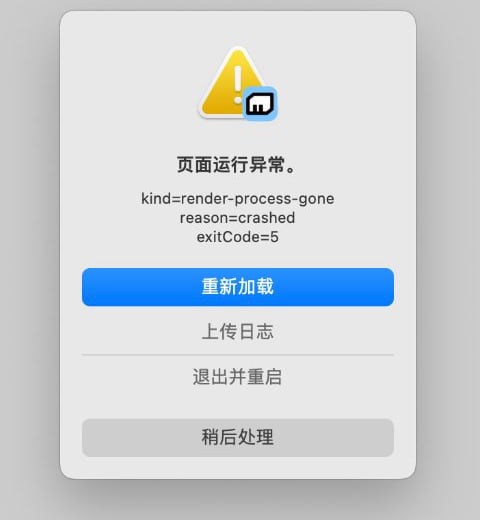
One confirmed cause: system version compatibility mode
In a case involving macOS 12.7.6 and MiniMax Code 3.0.74, crash dumps confirmed that app subprocesses read the compatibility version10.16.0, triggered Chromium’s system version check, and exited. Both the page process and the local service process may fail during startup in this situation.
SYSTEM_VERSION_COMPAT controls macOS system version compatibility behavior. When set to 1, relevant system interfaces may return a compatibility version for older software; setting it to 0 disables this behavior. The variable’s actual value and configuration source have not been confirmed in this case, and the user has not yet reported the result of disabling compatibility mode on the affected machine.
exitCode=5 alone does not identify the cause. The steps below help investigate system version compatibility issues; other crashes still require logs and crash dumps to diagnose.Start with a one-time launch comparison
- Quit MiniMax Code completely. If any processes remain, identify and end only those belonging to the app in Activity Monitor.
-
Open Terminal and explicitly disable compatibility mode for this launch:
Replace the path if the app is installed elsewhere. Keep Terminal open while observing the startup result. This setting applies only to this launch and its child processes; it does not change system configuration or delete app data.
-
If the app starts successfully, check where
SYSTEM_VERSION_COMPAT=1is set in the original launch environment, such as shell configuration, a launch script, or the login session environment. Prefer removing or adjusting that source. Preserve the original configuration until its purpose is understood, as older software may depend on compatibility mode.
Disable compatibility mode for the current user’s login session
If the one-time comparison works and you also want to use this setting when launching from Finder or the Dock, follow these steps in Terminal. Nosudo is required.
First, query and record the original value. No output usually means the variable is not set in this login session:
0:
launchctl unsetenv SYSTEM_VERSION_COMPAT. If it had a value, restore it with launchctl setenv SYSTEM_VERSION_COMPAT ORIGINAL_VALUE, replacing ORIGINAL_VALUE with the recorded value. Then quit and restart the affected apps completely.
If the app still crashes
Do not clear app data based solely on this error code. Click “Upload logs” in the dialog (or upload from Settings if accessible), and provide support with the Upload ID, app version, macOS version, launch method, and the one-time launch comparison result. If crash dumps are needed, follow support’s instructions. Do not publish raw logs or dumps publicly.Startup or service abnormalities
For therender-process-gone error above, start with its dedicated section. For other macOS startup or service issues, follow “MiniMax Code service fails to start” under General Issues: end related minimax processes in Activity Monitor, then check, back up, and delete ~/.mavis and ~/.minimax if needed before restarting the app.